

W-2 Preview Integration Guide
This guide walks through building W-2 previews into your product — so employers and employees see a draft W-2 while the year is still open, and are able to fix errors before Check files.
Overview
A W-2 reports one full calendar year of wages. While the year is still open, a correction is a normal edit to an employer’s payroll data — the employer updates the employee record or runs a corrected payroll, and the preview of the W-2 reflects it. However, once Check files W-2s in January, any corrections to payroll data become a W-2C with a charge associated.
The purpose of previewing W-2s is to give your employers and employees peace of mind that their payroll data will be filed accurately at the end of the year, but also mainly to reduce the volume of W-2Cs requested at the end of the year. W-2Cs cause employer and employee frustration.
Generally there are three ways we recommend surfacing W-2 previews to your employers and employees. The perfect combination of these varies, depending on your customer base and their expectations:
- Employer previews W-2 totals using a bulk report. This method is best suited to larger employers who have many dozens or hundreds of employee W-2s to review, and may have someone with payroll expertise on staff who is accustomed to running year end audits.
- Employer previews W-2 PDFs. This method is best suited to small and medium sized employers who want to actually see their employees’ W-2s before they are filed.
- Employee previews their own W-2 PDFs, and reports any discrepancies to their employer for resolution. This method is best suited to small employers who may not have the capacity or know-how to audit their own W-2s, and instead will rely on employees to find and flag issues.
Quick reference: the recommended flow
- Starting in November, prompt employers to start year-end prep by embedding the Filing Preparation Checklist / Filing Preview Component, or build an equivalent native experience with Check’s API. This encourages employers to start auditing W-2s. For companies that went live in 2026, encourage employers to review as soon as possible, as these employers are more likely to have setup or pay history issues needing correction.
- Recommend that large employers audit W-2s. Encourage payroll admins to use the Payroll Summary report as a basis for reconciling the numbers.
- Once an initial review has been completed by the employer, push draft W-2s to employees ahead of the final payroll of the year to catch any remaining errors.
- Promptly process corrections flagged through this process in Console, and/or by raising a ticket with the Check team, so fixes can be made as in-year corrections before the W-2 is published.
- Once an employee’s W-2 is published, direct the employee to the filed copy in Employee Tax Documents, and be explicit that further corrections will require the W-2C amendment flow.
Key dates
Year-end spans a couple of months, but these are the dates that matter:
| Window | What to do |
|---|---|
| Now until November | Start building against Check’s components or APIs to surface W-2 previews to employers and employees. |
| November → the final payroll of the year | Prompt employers to review draft W-2s and catch errors then push previews to employees. |
| The final payroll with a pay date on or before December 31 | Final reminder; escalate anything an employee has flagged so it lands in this payroll. |
| Early January | Turn off previews so that employees don’t get confused that these drafts are final/already filed. |
| Check publishes the W-2s from January 11th to January 15th | Check will create and send a notification per employer confirming once all eligible original statements are available (within this window). |
| After W-2s are published | Switch both audiences from the preview to the filed copies. Make it clear that corrections will require a W2-C. |
What to audit in a preview
A preview only reduces corrections if the person looking at it knows what to check. Prompt both employers and employees to review the below:
- Informational data — name, SSN, address. The highest-yield category, and the one employees are best placed to catch.
- State taxes applied. For most employees the W-2 is the first time they see every state they were taxed in, in one place. Someone who has lived in one state and been taxed in another all year finds out here. These corrections are expensive, and they're worth prompting employers to check explicitly — especially for remote or multi-state workforces.
- Box 12 items. Check that things like 401(k) and Roth contributions are coded to the right box, and that employer match is included where it should be.
- Exemptions. Some employees are legitimately exempt from Social Security and Medicare which will drive a $0 value in some fields — clergy and certain visa holders, for example.
W-2 previews for employers
The employer path covers what only the employer can do: complete company tax information, review employee W-2s across the company, act on what employees have flagged, and fix the underlying data before the final payroll of the year.
Reconcile the previews against the payroll summary
The sum of all employees' W-2s should match the company's payroll summary: federal taxable wages, Social Security taxable wages, Medicare taxable wages, and each state and local line. Make sure payroll admins have an easy way to navigate to the Payroll Summary report to help with their audit.
W-2 data is available as a bulk CSV inside the tax package you already request.
A ZIP of PDFs works for an employer spot-checking a handful of W-2s. Large employers who need a more scannable format can work from the CSV instead: a tax package that includes at least one employee tax statement also contains one, with one row per requested statement, covering every box on the W-2.There is no separate endpoint to call — request the package with
POST /tax_packagesand download it as described below. See the Tax Packages guide for what a package contains. The Filing Preview component's own bulk download is a separate thing, covered further down this page.
Note: when doing this reconciliation, make sure the payroll summary period and the W-2 match. Previews currently refresh weekly so pull the payroll summary as of that same Sunday. A live payroll summary compared against a preview generated before a mid-week payroll will show a difference that isn't an error.
Three ways to build it
| Option A — Embed Check's components | Option B — Build on the APIs | |
|---|---|---|
| You own | Placement and framing | The entire experience |
| Check owns | Preview UI, PDF rendering, empty states, deadline logic | The underlying data, fetched via the API |
| Effort | Lowest — fastest to ship, lowest to maintain | Larger, but fully customizable |
Option A: Embed Check's components
Prompt employers to begin year-end prep with a prominent, time-aware banner on a screen they already visit, such as the payroll home page.
Once the employer clicks “Start year-end prep” they are taken through the Filing Preparation Checklist Component.
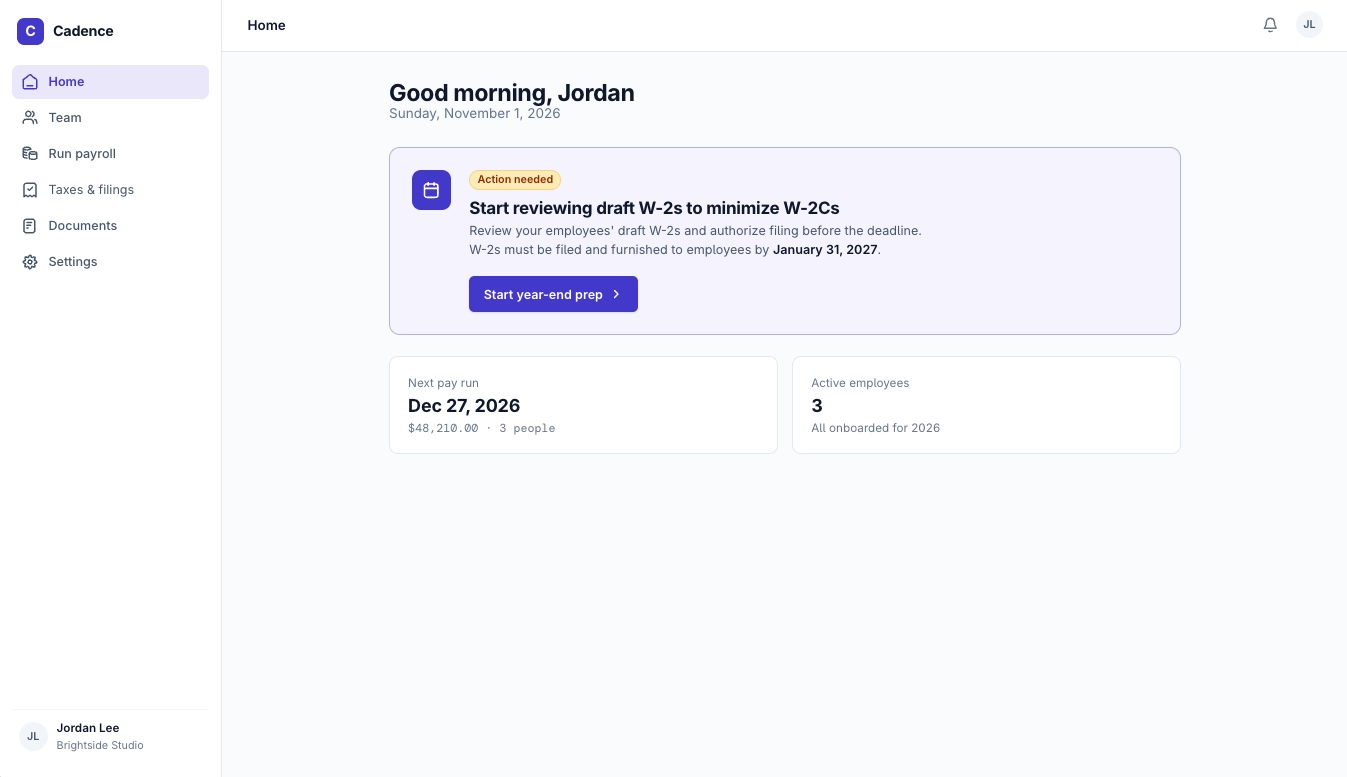
Year-end prompt on payroll home page
This then takes them through a guided flow: review company tax info, then preview W-2s.
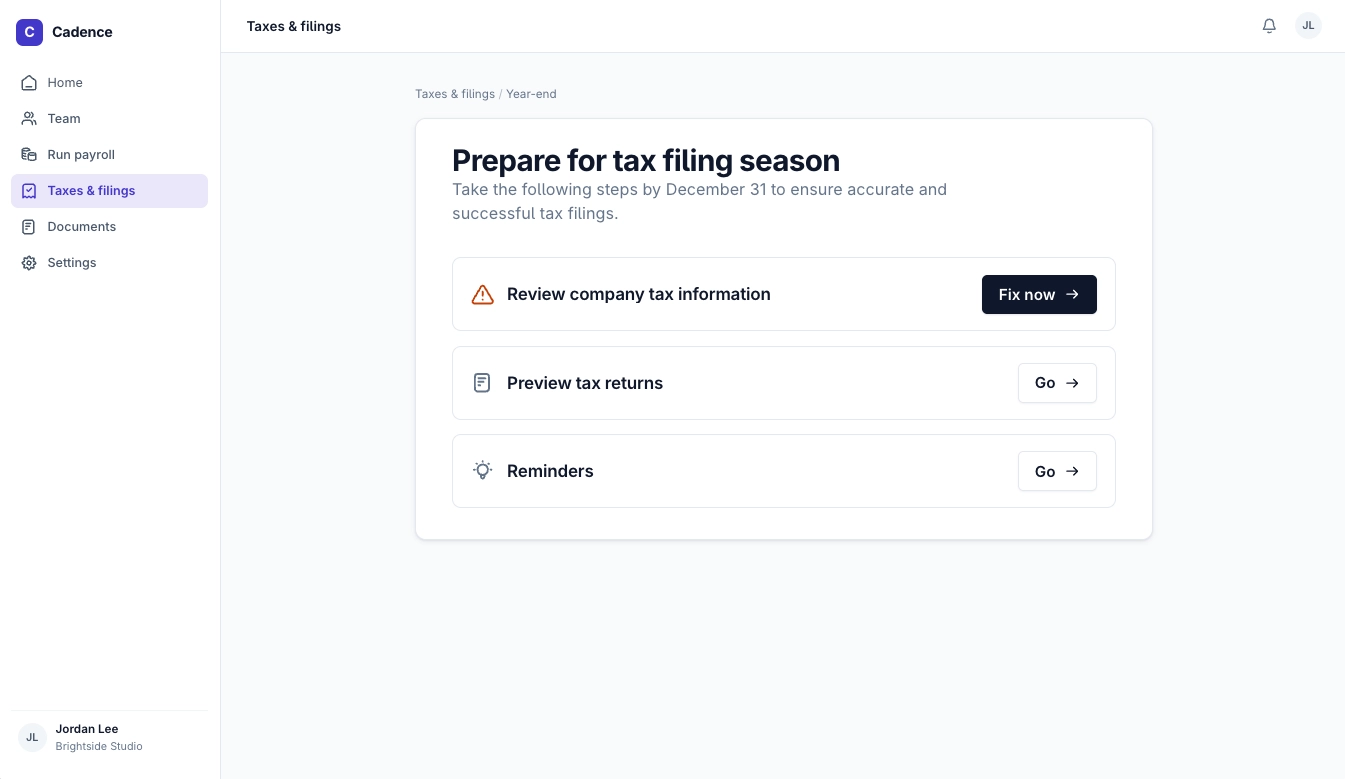
The embedded Filing Preparation Checklist
Two checklist behaviors to know:
- "Review company tax information" shows a stronger "Fix Now" action when the company is missing tax info — defined as having
setup_parametersin the blocking or remaining steps of its onboard status. Missing state withholding account numbers are the most common cause of blocked year-end filings, so surface the checklist early. - "Preview employee W-2 filings" only appears when the company has W-2 data for the current year. Contractor-only companies, or companies with no pay history, won't see it. If the preview step is missing, check whether the company actually ran W-2 payrolls this year.
Embed it. Generate the component link server-side:
POST https://sandbox.checkhq.com/companies/{company}/components/checklist
Authorization: Bearer <API_KEY>
Content-Type: application/json

{ "topic": "filing_preparation" }
Returns a one-time component URL:
{ "url": "{component_url}" }topicis required;filing_preparationis the only valid value today.- Generate a fresh URL on every page load. Links are single-use; don't cache or reuse them.
Once company tax information is complete, the employer can view and download their employees' W-2s before Check files them.
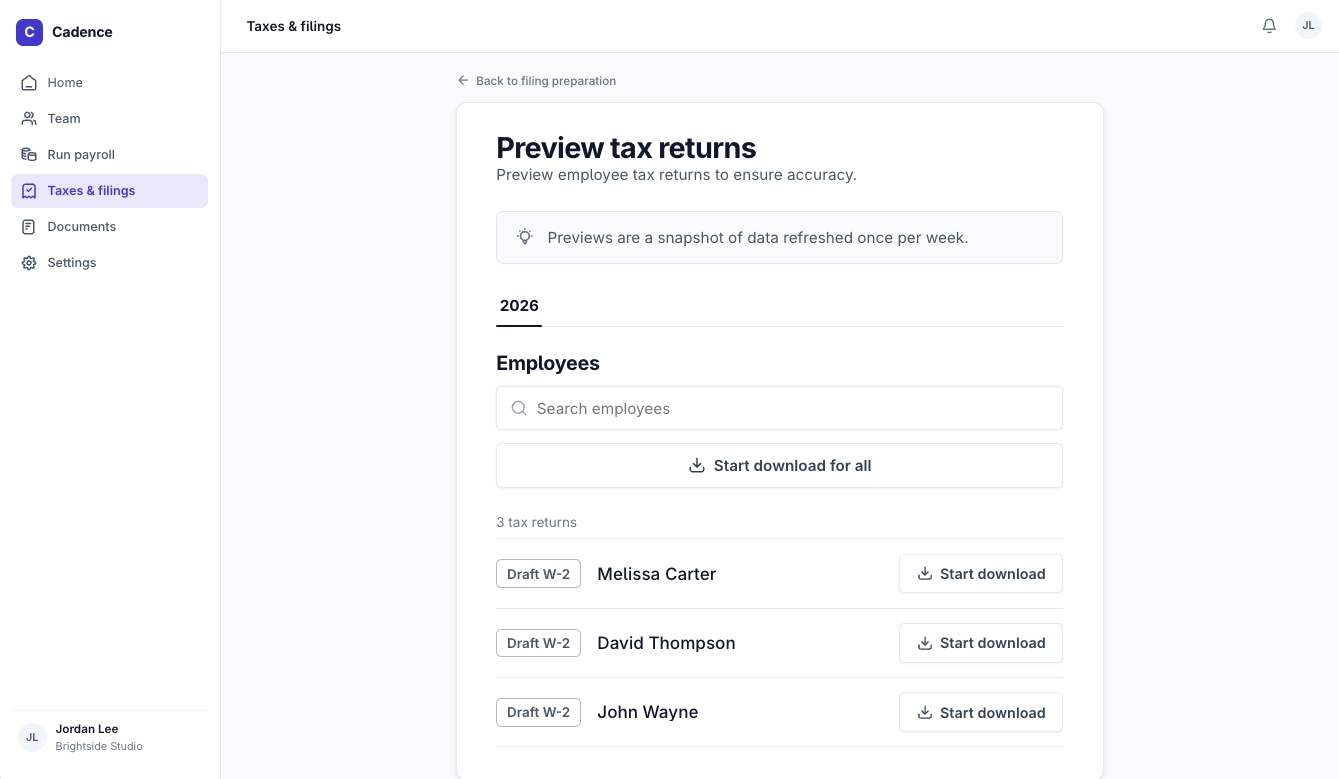
The standalone Filing Preview
Today the Filing Preview component covers one return type: annual employee W-2s and W-2Cs. It is not the filed document of record. Once filed, the official copy lives in the Employee Tax Documents component and the Tax Statement APIs.
You may want to embed the Filing Preview as a standalone component (as opposed to integrated in the full checklist shown above) if you want to place it inside your own custom year-end UI.
Embed the standalone preview.
POST https://sandbox.checkhq.com/companies/{company}/components/filing_preview
Authorization: Bearer <API_KEY>
No request body. Returns the same one-time { "url": "{component_url}" }.
The preview lists every employee's draft W-2 for the year, with per-employee and "Start download for all" actions.
This component supports download in PDF and CSV format.
This allows employers to leverage the component and download in bulk, with output that is more scannable making it easier to detect errors at scale.
Option B: Build on the APIs
To build the employer experience in your own design, use the Employee Tax Statements and Tax Packages APIs instead of the components.
Step 1: Review company tax information
Before entering the W2 preview flow, prompt employers to check that their tax setup is complete.
1. Detect what's missing — GET /companies/{company}/onboard. The company's onboard status returns blocking_steps and remaining_steps. If setup_parameters appears in either, the company's tax information is incomplete. The setup_parameters array lists the jurisdictions still needed, each with an id, name, and status (blocking, or needs_attention for parameters the company has only marked "applied for").
{
  "status": "blocking",
  "blocking_steps": ["setup_parameters"],
  "remaining_steps": ["setup_parameters"],
  "setup_parameters": [
    { "id": "jur_...", "name": "New York", "status": "blocking" }
  ]
}
2. Show the specific parameters — GET /company_tax_params/{company_id}. Lists the tax parameters that apply to the company; add /settings for current values or /jurisdictions to group by jurisdiction. Use this to render exactly which fields the employer still needs to complete.
3. Let the employer complete them — two options:
- Write the values yourself —
PATCH /company_tax_params/{company_id}. Fully native: collect the values in your own form and submit them. - Embed the Company Tax Setup component —
POST /companies/{company}/components/tax_setup. If you'd rather not build and validate the forms, drop Check's tax-setup component into this step while keeping the rest of the flow native.
4. Re-check — GET /companies/{company}/onboard. Once setup_parameters clears from blocking_steps and remaining_steps, advance the employer to the W-2 preview.
Keep the checklist's order: only move an employer to the W-2 preview once their company tax setup is complete. Previews generated against incomplete tax info surface avoidable errors.
Step 2: Build the W-2 preview
Rebuild the preview in your own UI using the Employee Tax Statements API.
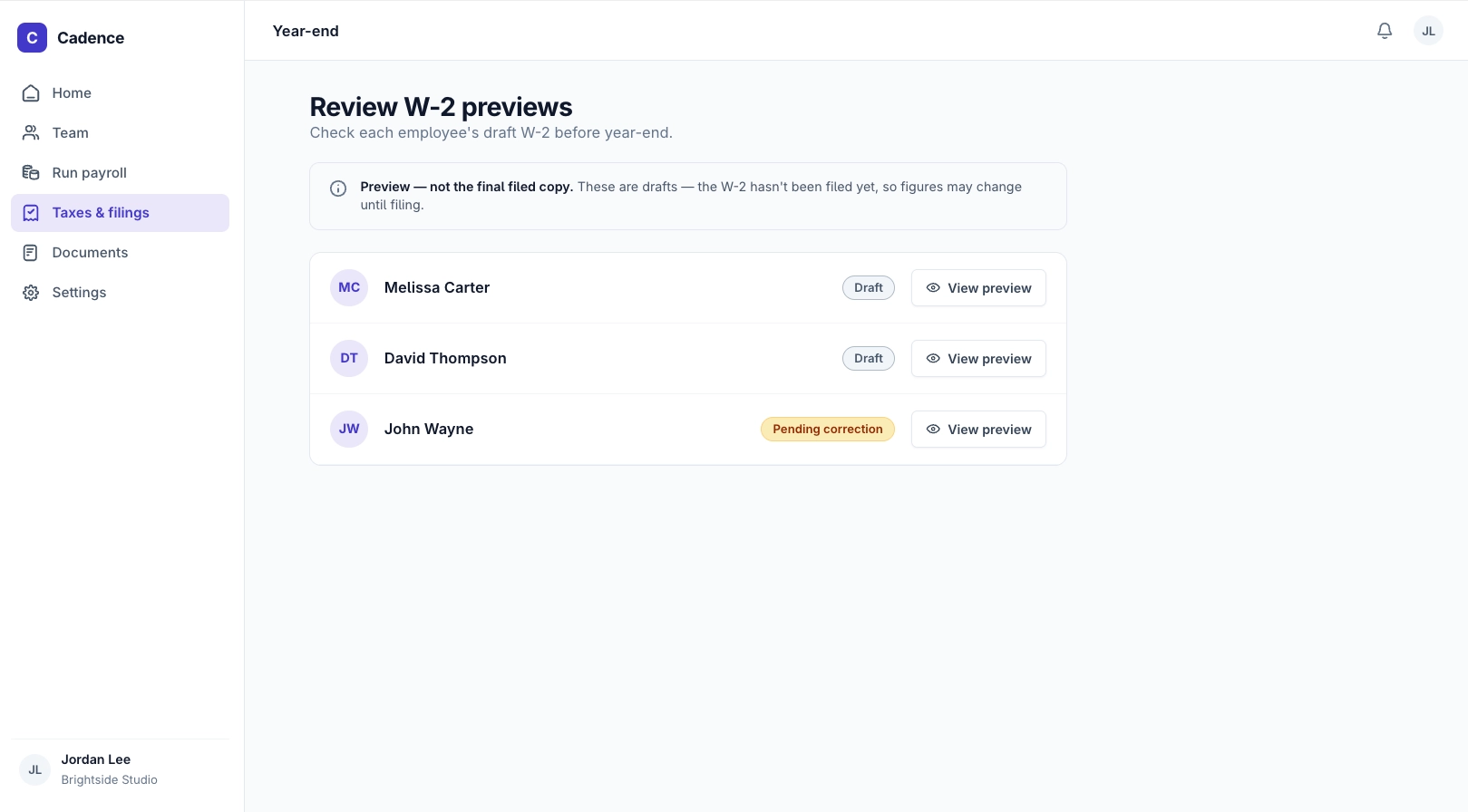
A native W-2 review surface built for employers
For the employer view, scope the call to the company. One call returns every employee's statements:
GET /employee_tax_statements/?company=com_123&year=2026&publication_status=draftSupported filters:
| Filter | Notes |
|---|---|
company / employee | One of the two is required — the endpoint returns a 400 if neither is supplied. Use company for the employer view. |
year | Tax year |
publication_status | draft (not yet published), published, or pending_correction (held). draft is the cleaner way to isolate reviewable previews — prefer it over inferring from document == null |
type | original or amendment — use amendment to pull just W-2Cs |
How the fields map to the UI:
year— the tax year each row represents; drives your year selector.document— the row's status badge:null= a Draft preview (not yet filed); a populated ID = Filed, so you can link to the official copy in Employee Tax Documents.amends/amended_by— flag corrections: a statement withamendsset is a W-2C; useamended_byto mark the original as superseded and link the two.filed_at— show a "Filed {date}" timestamp once the row is filed.
The Tax Packages API powers the View preview and download actions, producing the PDF the employer actually opens. It generates a ZIP for one or many employees at once: a preview PDF per statement, plus a CSV of that statement data whenever the package includes at least one employee tax statement.
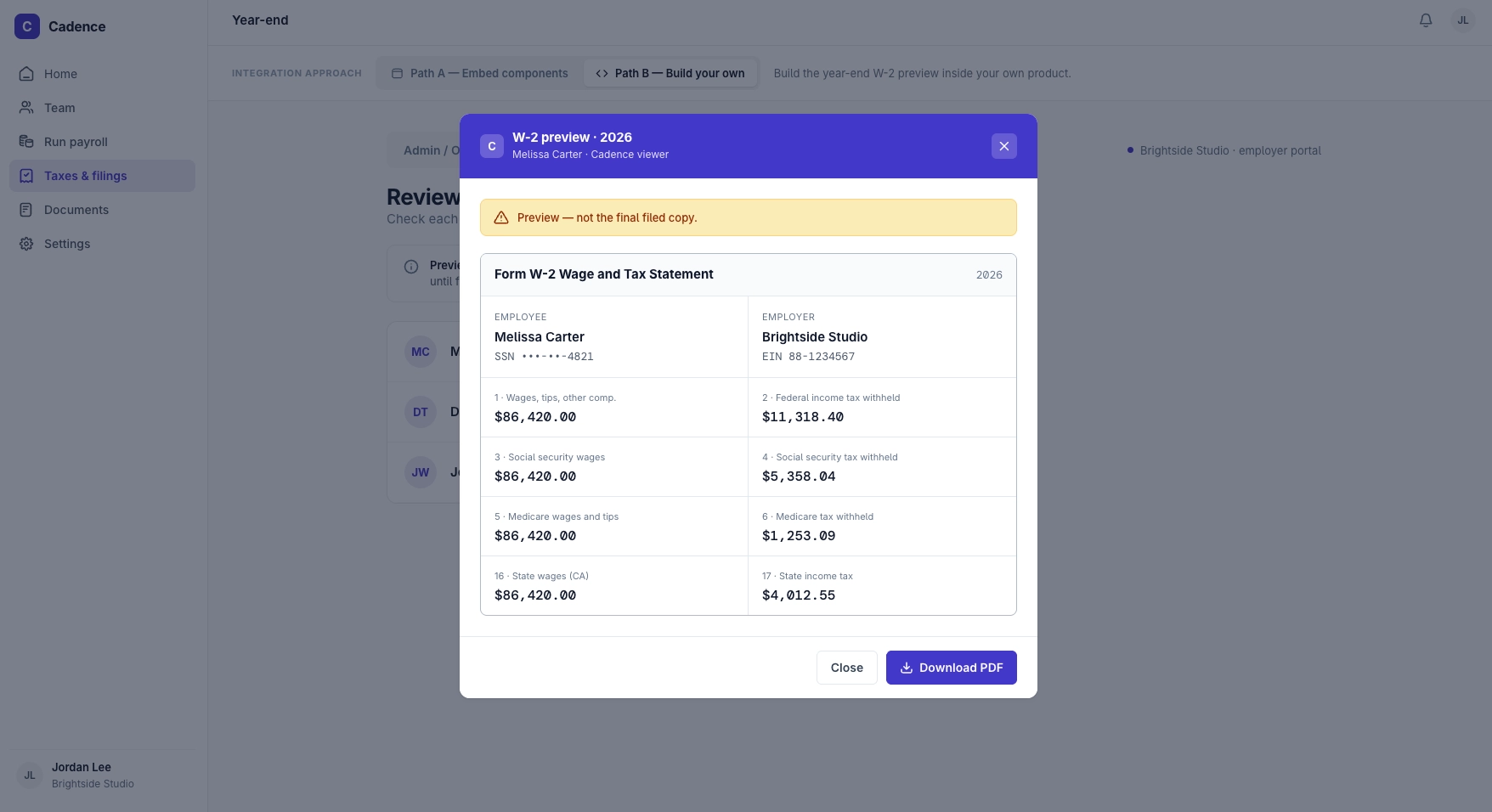
Generating a tax package of preview PDFs
POST /tax_packages
{ "company": "com_...", "contents": { "employee_tax_statements": ["ets_123", "ets_456"] } }
The request returns a TaxPackage object and enqueues a job. Keep the id and poll:
GET /tax_packages/{id}- While
statusisgenerating, keep your "Preparing preview…" state up and keep polling. It moves tosucceededorfailed. - On
succeeded, download the ZIP from theresult.urlin the response (it points at the package's/downloadendpoint). The URL expires atresult.expires_at, ~1 hour after success — download promptly. - On
failed, drop the loading state and surface a retry to the user.error.typeis typed — e.g.generation_timeout(took over an hour; retry with fewer employees) orcontent_not_found.
Step 3: The end-to-end flow
- Enumerate statements. One company-scoped call —
GET /employee_tax_statements/?company=com_123&year=2026&publication_status=draft— and page throughnextuntil it's null. Collect theets_IDs. There's no need to loop per employee. - Request a package.
POST /tax_packageswith those IDs. Batch appropriately — large companies can hit the one-hourgeneration_timeout, so split into multiple packages. - Poll to completion.
GET /tax_packages/{id}untilsucceededorfailed. - Deliver. Fetch the ZIP before
result.expires_at. Render it in your UI, email it, or store it behind your own auth.
W-2 previews for employees
Employees are likely to catch most informational errors related to name, SSN, address, and wage. Direct attention to these fields and give the employee the opportunity to raise errors in advance of their W2s being published.
Build the preview on the APIs
The employee-facing preview can be created using the Employee Tax Statements and Tax Packages APIs mentioned above.
- Enumerate that employee's statements —
GET /employee_tax_statements/?employee=emp_123, filtered to the currentyearwithdocument == null. - Generate their preview —
POST /tax_packageswith just theirets_ID, then poll to completion. - Deliver it to them — behind your own employee authentication, in whatever surface they already use.
Label it as a draft. An employee who mistakes a preview for a final W-2 may file their personal return off it.
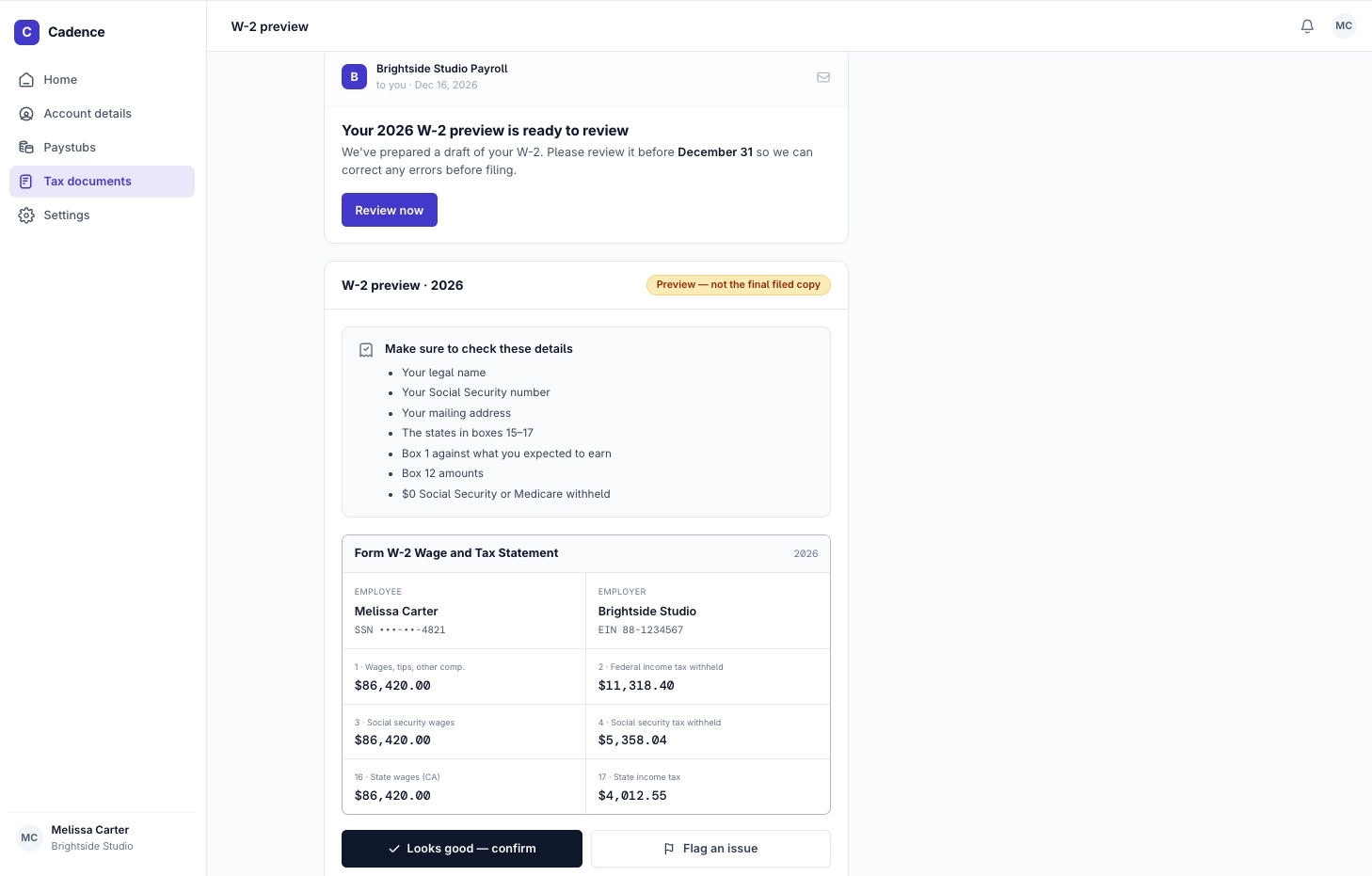
A native W-2 review surface built for employees with tips for data to audit
Published W-2s
Once a W-2 is published, remove the preview and point them at the filed document instead.
Detecting that an employee's W-2 has published
Monitor for signals on the Employee Tax Statement:
documentflips fromnullto anEmployeeDocumentID — that ID is the filed copy.filed_atpopulates at the same time.publication_status=publishedfilters the list endpoint to exactly the statements that have crossed over, which is the cheaper way to sweep a whole company.
Check will also send one notification per employer confirming that all eligible original statements are available in which case they will be ready to fetch from the Employee Tax Documents endpoint.
Fetching the filed copy
The document itself comes from Employee Tax Documents, a different resource from the tax statement:
GET /employee_tax_documents/?employee=emp_123&year=2026&document_type=fed_w2| Filter | Notes |
|---|---|
employee / company | Scope to one employee for their own view. |
year | Tax year |
document_type | fed_w2 for the W-2, fed_w2c for a correction, fed_w2c_explanation for the accompanying explanation of changes |
Always pass
document_typebecause this endpoint holds every employee document, not just year-end forms.
To serve the PDF:
GET /employee_tax_documents/{id}/downloadThis streams the PDF back directly rather than handing you a signed URL.
What to show the employee
- Label it as the official copy, in contrast to the draft they were reviewing a few weeks earlier. Give them a download, and keep prior years available.
- Distribution deadline is January 31. Employees must have access to their W-2 by then. If you're relying on employees pulling it from your product rather than the mailed copy, make sure they know it's there.
- Handle corrections as a pair. When a W-2C is filed, a new
fed_w2cdocument appears alongside the original rather than replacing it. Useamends/amended_byon the statements to link the two, show the W-2C as current and mark the original superseded. - Set expectations on fixes. An error spotted now is no longer a self-serve edit — it's a W-2C with a cost attached.
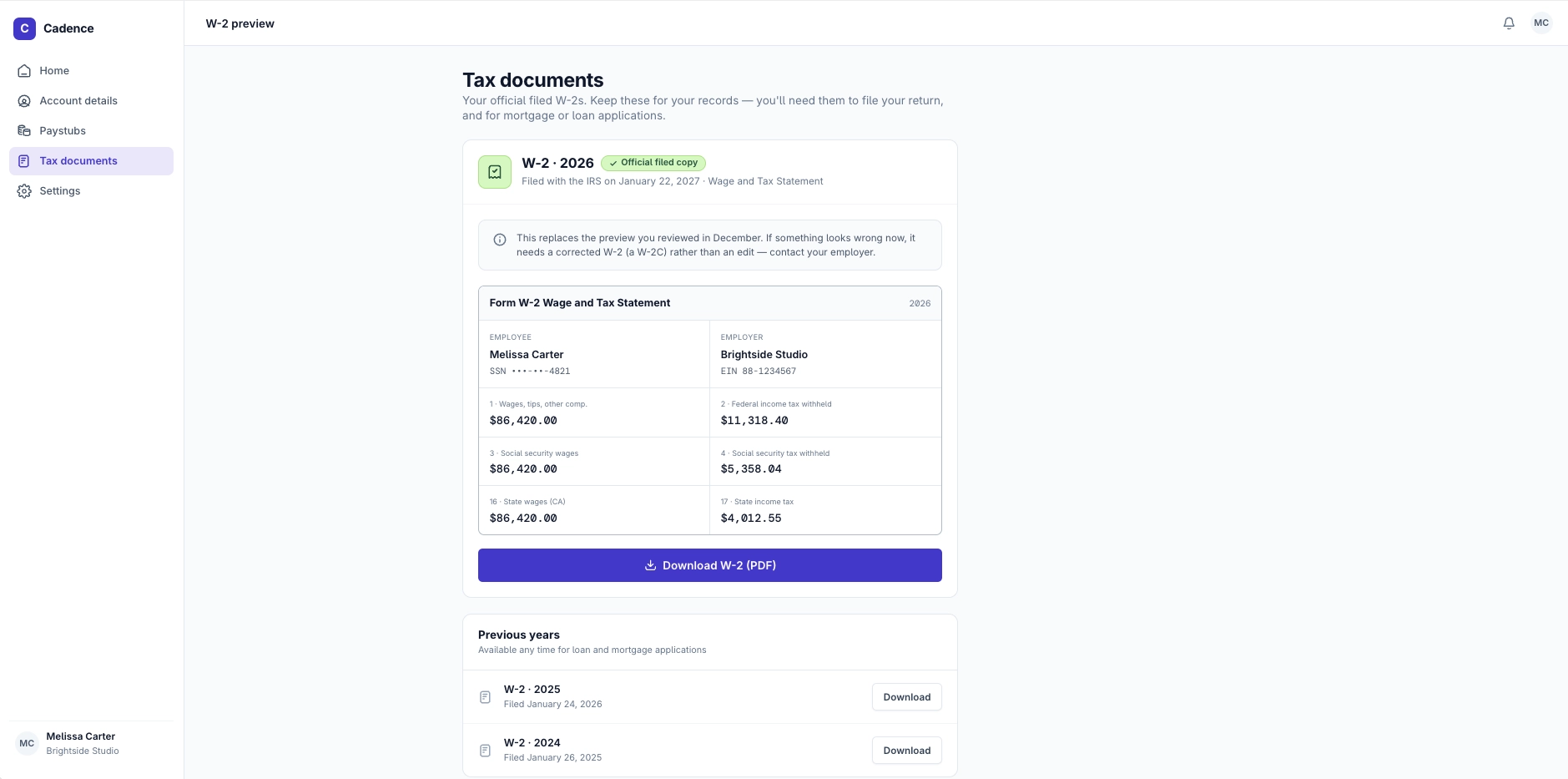
Surfacing published W2s to the employee
FAQs
| Question/Issue | Answer |
|---|---|
| The W-2 preview step isn't showing. | The company has no current-year W-2 data (contractor-only or no pay history). |
| Can employers preview 941s / state quarterlies / 1099s here? | W-2 and W-2C only. More return types are planned in future. |
| The component link "expired" or went blank after a re-render. | A one-time link was reused, or create() ran twice. Generate a fresh URL per load. |
| We're still calling the old W-2 Preview Report. | Migrate to the Employee Tax Statements / Tax Packages APIs — the old report will return nothing in 2026. |
| Is the previewed PDF the official W-2? | No — it's a preview of what Check will file. Filed copies come from the Tax Documents / Employee Tax Documents endpoints. |
| My tax package download link doesn't work. | result.url expires ~1 hour after the job succeeds. Re-poll or regenerate and download promptly. |
| Can we get preview data as JSON or CSV instead of PDFs? | CSV, yes. A tax package that includes at least one employee tax statement contains a CSV of that statement data alongside the preview PDFs, so there is no separate call to make. JSON is not available. |
| How should a large employer review hundreds of W-2s? | Request a tax package covering their statements and work from the CSV inside it. It lets you scan many W-2s at once and reconcile the totals against the payroll summary. |
Updated 27 days ago