

Filings API Integration Guide
This guide walks through how to build filing health into your product using the Filings API — from surfacing and resolving blocked filings in real time through to housing year-end documents.
The filing data model
Every filing in Check has a status, a blocked_reasons list (when blocked), and a status_history that tracks every state transition. The statuses are:
pending— Check is preparing to submitblocked— Check cannot file until the issue is resolvedsubmitted— Check has transmitted to the agency; awaiting confirmationfiled— Agency confirmed acceptanceinapplicable— Check has determined the filing no longer applies to the company.
The blocked_reasons array is the key to building actionable UX. Each entry has a typeand some will have a note (an explanation of the blocking reason from Check operators), and a resource pointing to the specific object to fix — the tax param, employee, or payment involved.
Filing blocker management
This is the highest-value feature to build and an important starting point. Before any other filing views, you'll want employers to be able to see what's blocked and resolve it without opening a support ticket. Some patterns to build toward:
- Employer-facing alerts with self-service resolution — when a
company_filingblockedevent arrives, notify the employer proactively (push notification, email alert and banner in app) with a direct link into the resolution flow; don't wait for them to discover it - Automated monitoring — periodic
GET /filings?status=blockedchecks to catch new blockers across your platform; use the results to trigger outreach campaigns or surface login banners for employers who haven't resolved
Surfacing blockers
Subscribe to company_filing webhooks (Check-Topic: company_filing) as your primary data delivery mechanism. Check sends an updated event on every filing state transition, and the payload is the full filing object — so you don't need a follow-up API call to know what changed.
The pattern for every filing view in your UI:
- Initial load — call
GET /filingsto seed your local state on first render - Real-time updates — handle incoming
company_filingwebhooks to keep your state current without polling
The transitions that drive employer-facing UI:
status→"blocked"— surface the Action Required view;blocked_reasonsin the payload has everything you need to show the right message and actionstatus→"pending"(after"blocked") — a blocker was cleared; remove it from the Action Required liststatus→"submitted"— update to "In progress"; no employer action neededstatus→"filed"— move to Filed history; clear any blocker indicators
When you receive a company_filing updated event with status === "blocked", the payload's blocked_reasons array tells you exactly what to surface — which filing is affected, which blocker type it is, and which resource to fix. Use this event to drive a notification or badge that brings the employer into your Action Required view.
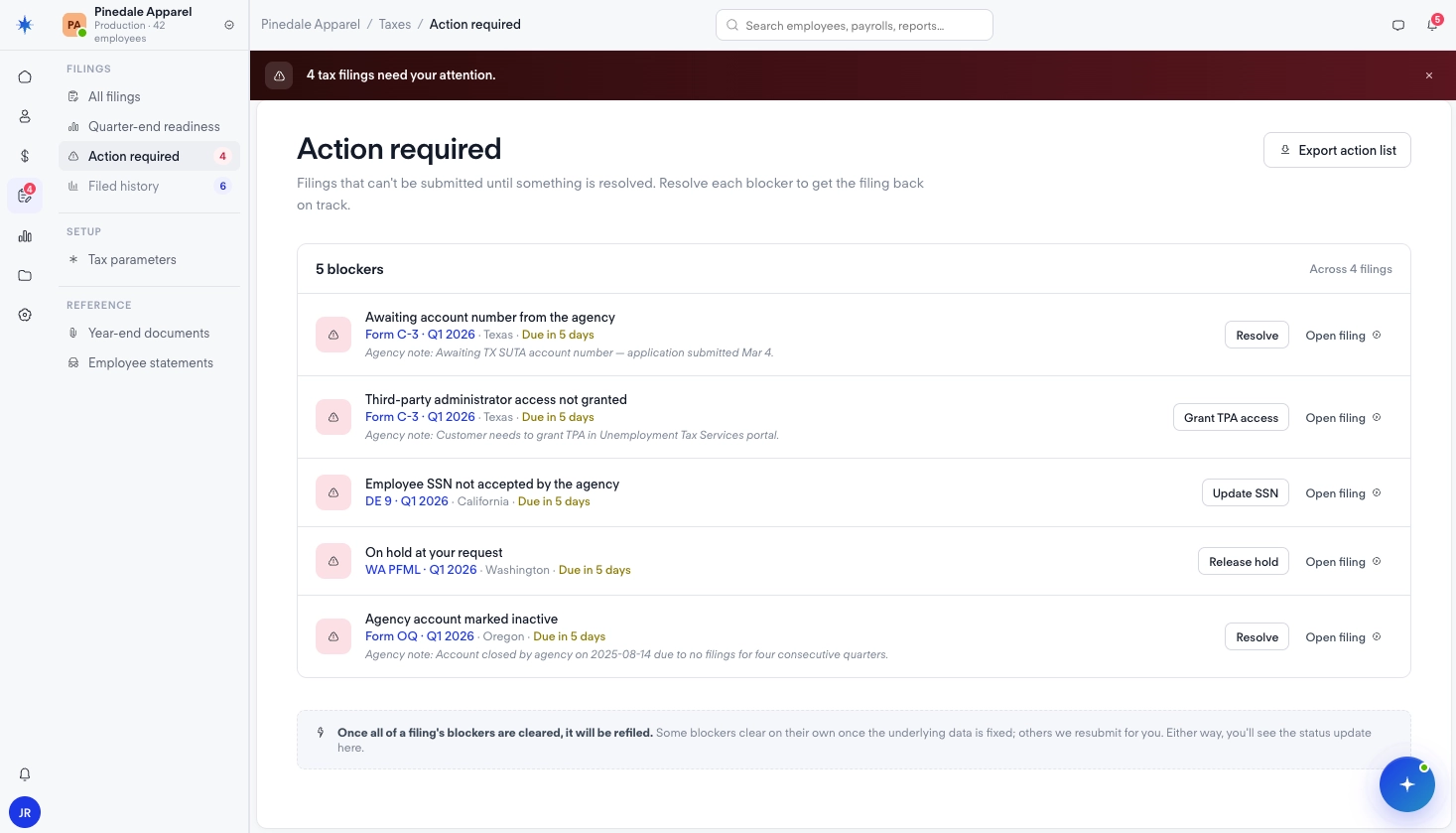
The UI shows a dedicated "Action required" view that aggregates all of the required actions for payroll, including filing blockers. This is more useful than surfacing blockers only on individual filing pages because employers see the full picture at once.
Each blocker row should show:
- A static, type-specific title as the primary description (e.g., "Awaiting account number from the agency" for
applied_for_tax_id; "Employee SSN not accepted by the agency" forinvalid_ssn; "Third-party administrator access not granted" fortpa_failure) — derived fromblocked_reason.type, not fromblocked_reason.note - An "Agency note" if
blocked_reason.noteis present — surfaced below the title as secondary context, not as the primary description - Which filing it belongs to, with the due date
- A direct action button scoped to that blocker type
The UI shows: Resolve (for applied_for_tax_id, inactive_account), Update SSN (for invalid_ssn), Grant TPA access (for tpa_failure), and Release hold (for held_by_customer).
Self-service resolution
When an employer clicks "Add account number," the UI opens a modal that collects the account number they've received from the agency. The filing unblocks automatically once it's saved if this is the last blocker.
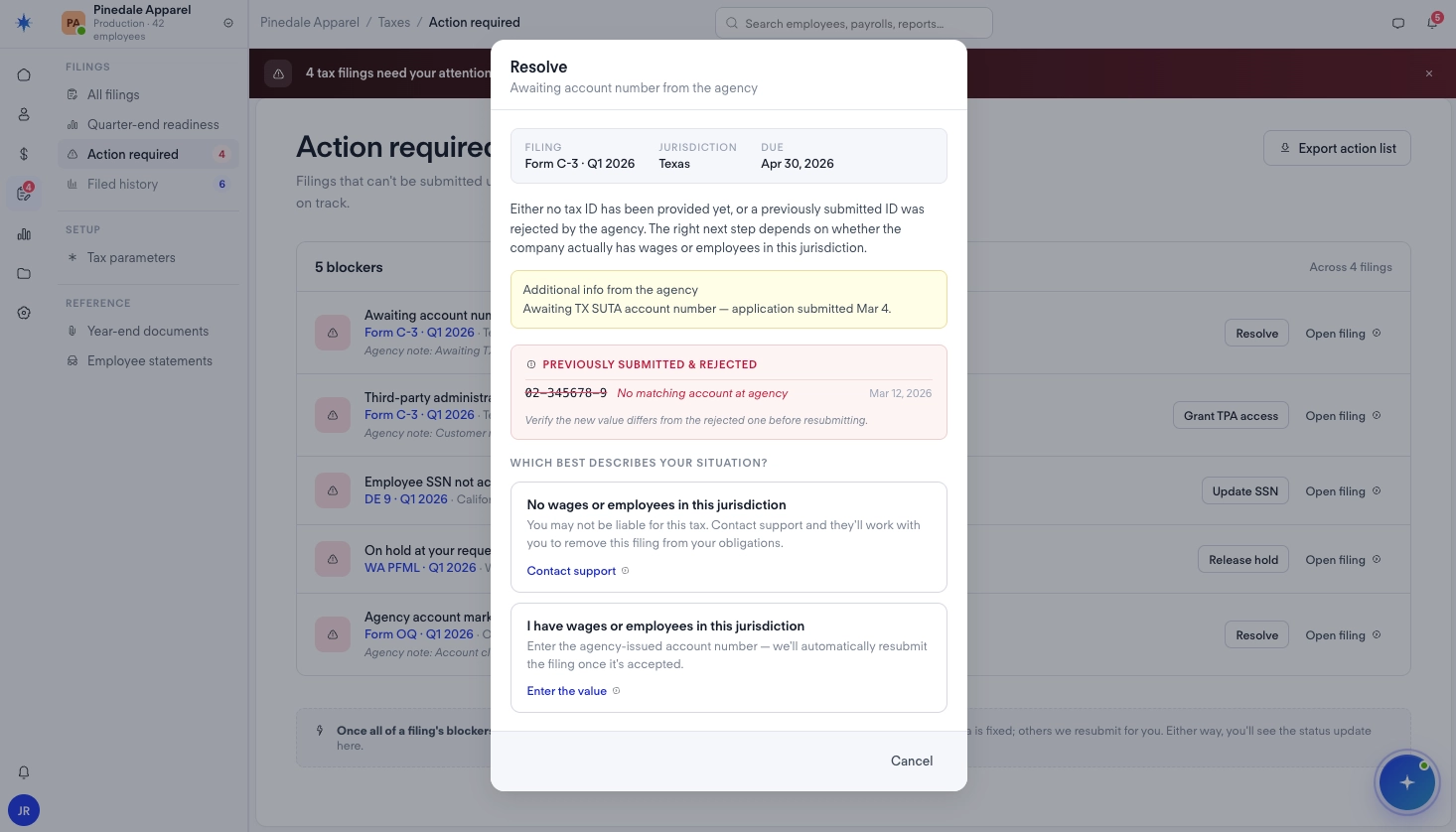
A few things worth replicating from this pattern:
- Show filing context in the modal — which filing is affected, which jurisdiction, when it's due. Employers need this to know what they're correcting.
- Use static descriptions, not the raw note — the primary explanation should be type-specific copy (e.g., for
applied_for_tax_id: "Either no tax ID has been provided yet, or a previously submitted ID was rejected by the agency."). Surfaceblocked_reason.noteif provided separately in an "Additional info from the agency" section below. - Show previously submitted values — only if a prior value exists. Fetch the value history via
GET /company_tax_params/{company_id}/settings/{spa_id}(where{spa_id}isblocked_reason.resource); if the result is non-empty, surface it as context (e.g., "Previously submitted: 82-345678-9 · No matching account at agency · Dec 12, 2024") and remind the employer to verify the new value differs. If no value has been submitted before, omit this section entirely. - Explain what happens when they submit — "Filing will be resubmitted once the value is saved." Employers are more likely to complete the flow when they understand the outcome.
- Surface the input format — e.g.,
12-345678-9. Pre-fill from the param schema to reduce errors. - CTA copy matters — use "Save and refile" only when this is the last blocker on the filing; resolving it will immediately queue a refile. If other blockers remain, use terminology like "Save" — the filing won’t refile until all are cleared.
The Release hold flow is for held_by_customer blockers — where an employer has explicitly paused a filing's submission. Unlike data-entry flows, there's no value to validate, so the employer should explicitly confirm they're ready to refile before you call POST /filings/{id}/remove_blockers. Note: Check may also place this blocker during active corrections; in those cases Check removes it once the correction is complete and no employer action is needed.
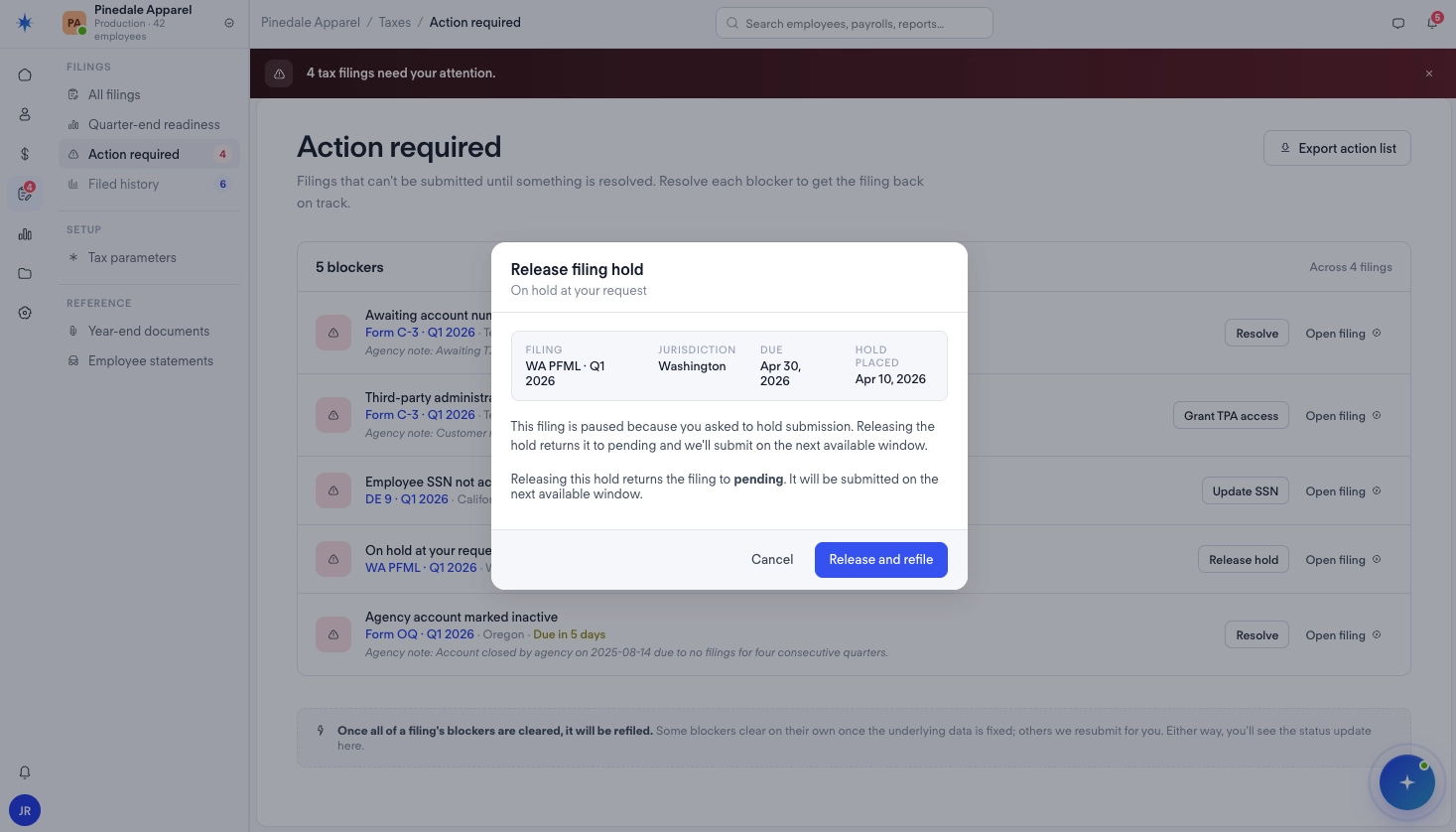
Please refer to the Tax Filings Guide for more information on how to resolve filing blockers.
Filing status overview
Once blocker management is in place, you'll want a main filing view that orients employers across all their jurisdictions, and a detail page for individual filings.
All filings view
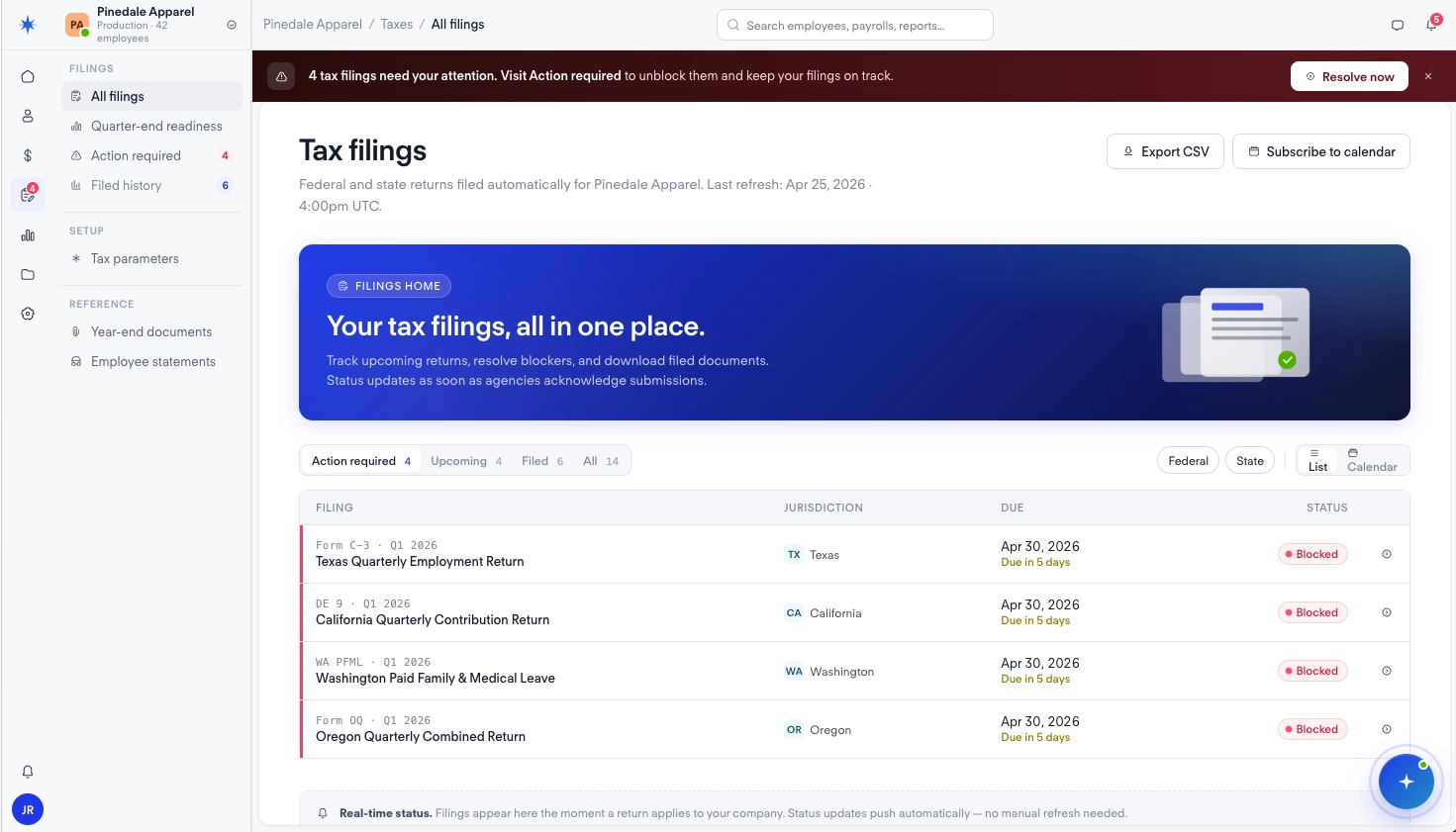
This view is seeded on initial load and kept current via company_filing webhooks — each updated event updates the status badge for that filing and recomputes the attention banner count without a page refresh. The UI above uses this as a landing page. The most prominent elements when blockers exist are the attention banner and the status badges on each filing row.
You could organize this as a list with filter tabs (Action required / Upcoming / Filed / All) — each tab is a frontend filter on the same GET /filings response with counts from each status group.
Filing detail
The individual filing page gives employers the full picture: status history, active blockers with action buttons, and a metadata panel. Employers land here from the filing list or from an action required row.
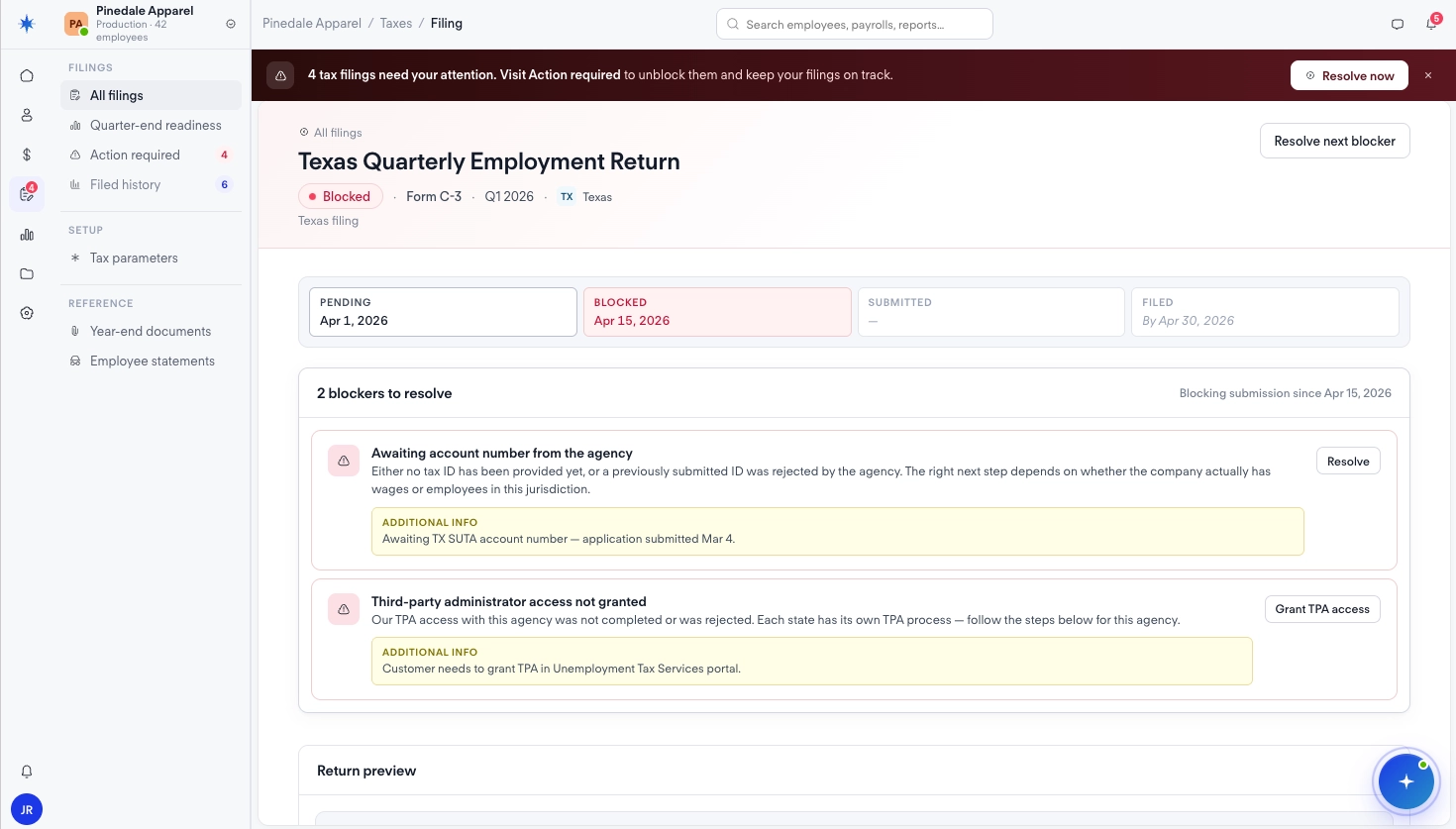
When an employer clicks into a specific filing, load its state from your local webhook-maintained cache rather than making a fresh API call — the payload you received on the last company_filing event has the full status_history and blocked_reasons. The status timeline (PENDING → BLOCKED → SUBMITTED → FILED) is worth building — filings can transition between states multiple times, and a visual timeline is easier to follow than a raw list. Note that the API returns status_history in reverse-chronological order — reverse it before rendering.
One important detail on the filing facts panel: use the status_at from the submitted entry in status_history for timeliness tracking, not filed_at. The filed_at timestamp reflects when the agency acknowledged, which can be days after submission.
Quarter-end readiness
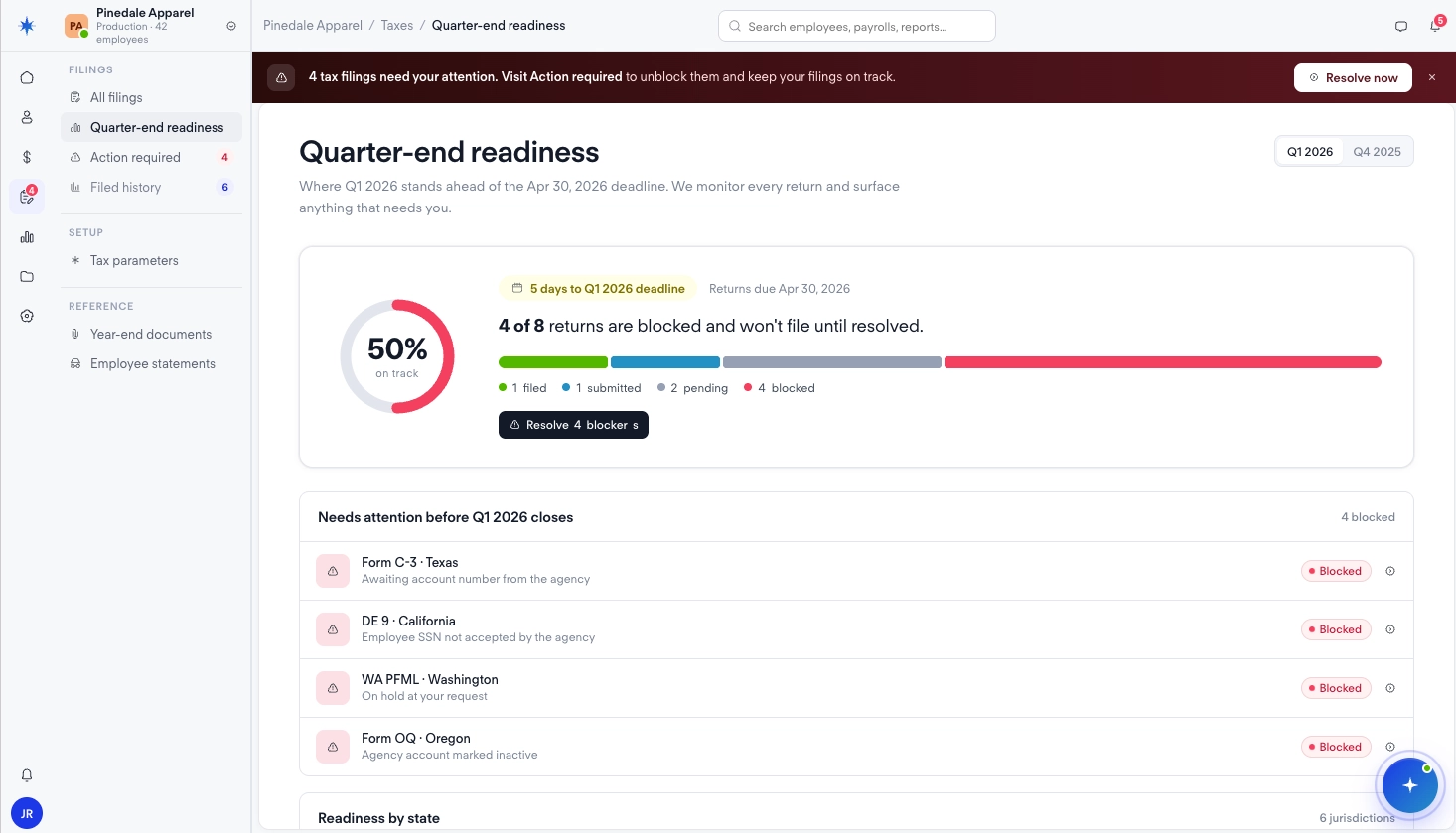
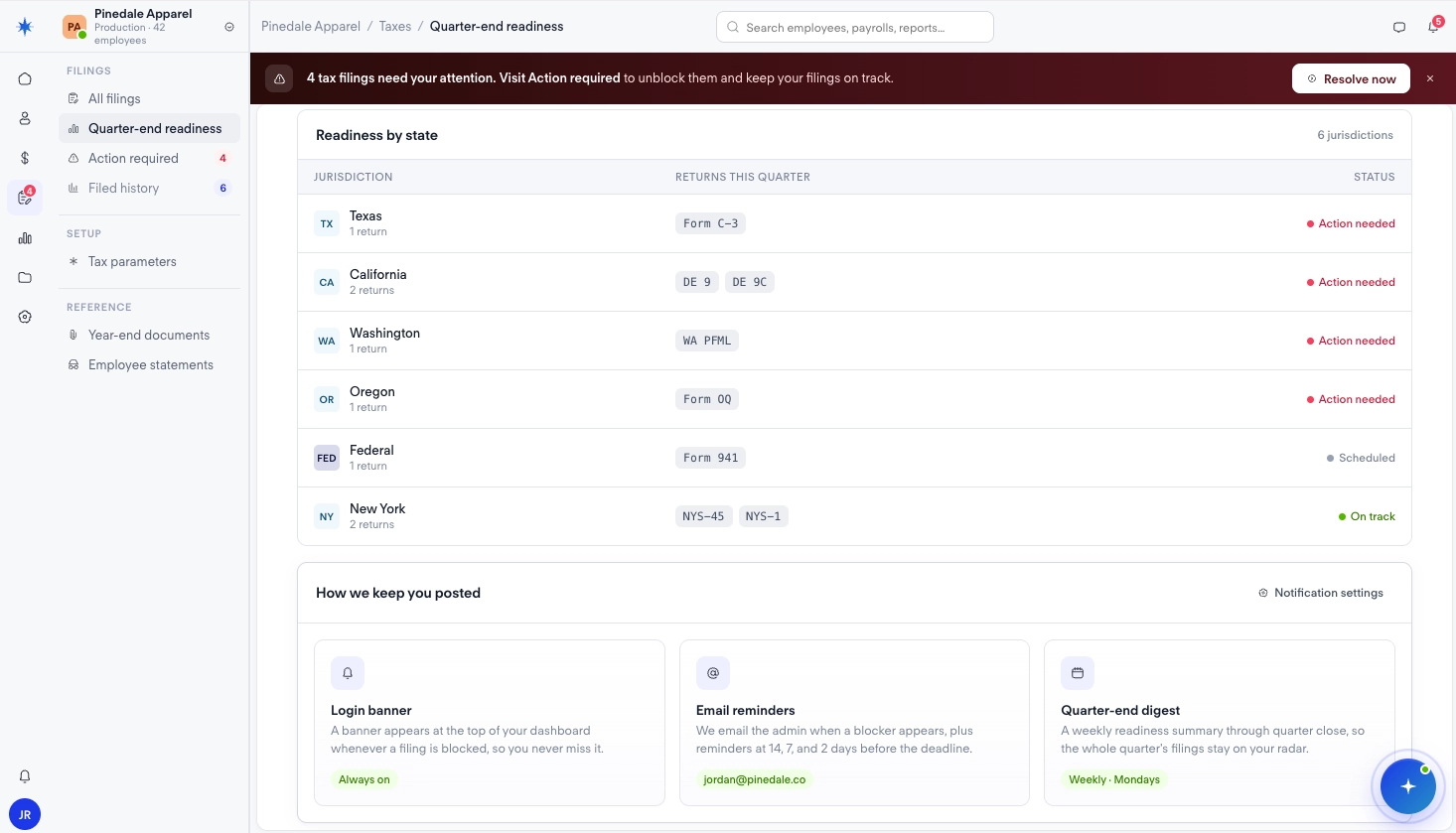
Quarter-end readiness gives employers a focused view of their current quarter's filing health — how many filings are blocked, in progress, or already filed — at a glance. This view is most valuable in the 2–4 weeks leading into each quarterly deadline (Q1: ~April 30, Q2: ~July 31, Q3: ~October 31, Q4: ~January 31). Instead of asking employers to scan a full filing list, you surface the answer to "Am I on track for this quarter?" as a headline count.
The key elements:
- Summary stat cards — Needs action, In progress, and Filed counts scoped to the current quarter. The Needs action count is the same blocked-filing data from your main view, just filtered to one quarter — no additional API calls needed.
- Per-filing rows — scoped to the current quarter only, each showing filing name, status badge, and days-until-due. Employers can click into a blocked filing and resolve it without navigating away.
This view doesn't require any API calls beyond what you've already loaded. Filter your local state (from GET /filings) to the current quarter's period and year, then keep the counts current via company_filing webhooks — the same events driving your main filing list.
Filed history
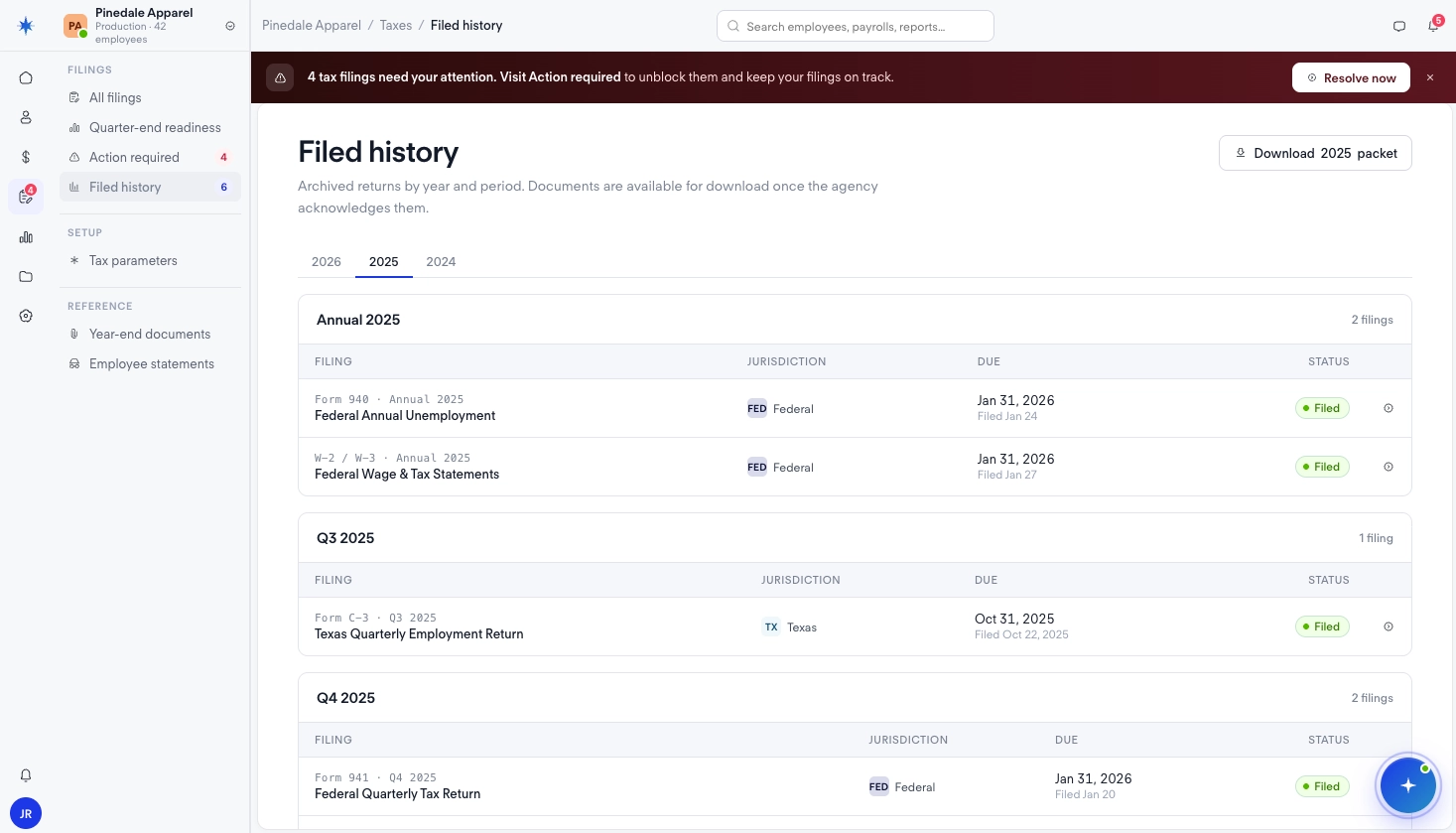
Employers regularly need to look up past filings — for audits, accountant requests, or to download copies of returns. Organize by year (tabs) and quarter within each year (sections: Q4 → Q1). You could group monthly filings into their parent quarter or separately by month. Annual filings sort first. This maps more closely to how employers actually think about their filing history.
A few things to handle correctly:
- The
amends/amended_byfields indicate amendment relationships — show an "Amendment" tag on amending filings and an "Amended" indicator on originals - The
documentfield on eachfiledfiling is the ID of the PDF; use it to build download links
Tax parameters
The tax parameters table shows every setup value Check uses to file — rates, account numbers, deposit schedules. The key pattern: when a param is linked to an active blocker, it shows a "Blocking N" status badge with a "Resolve" button that opens the same resolution modal as the Action Required flow.
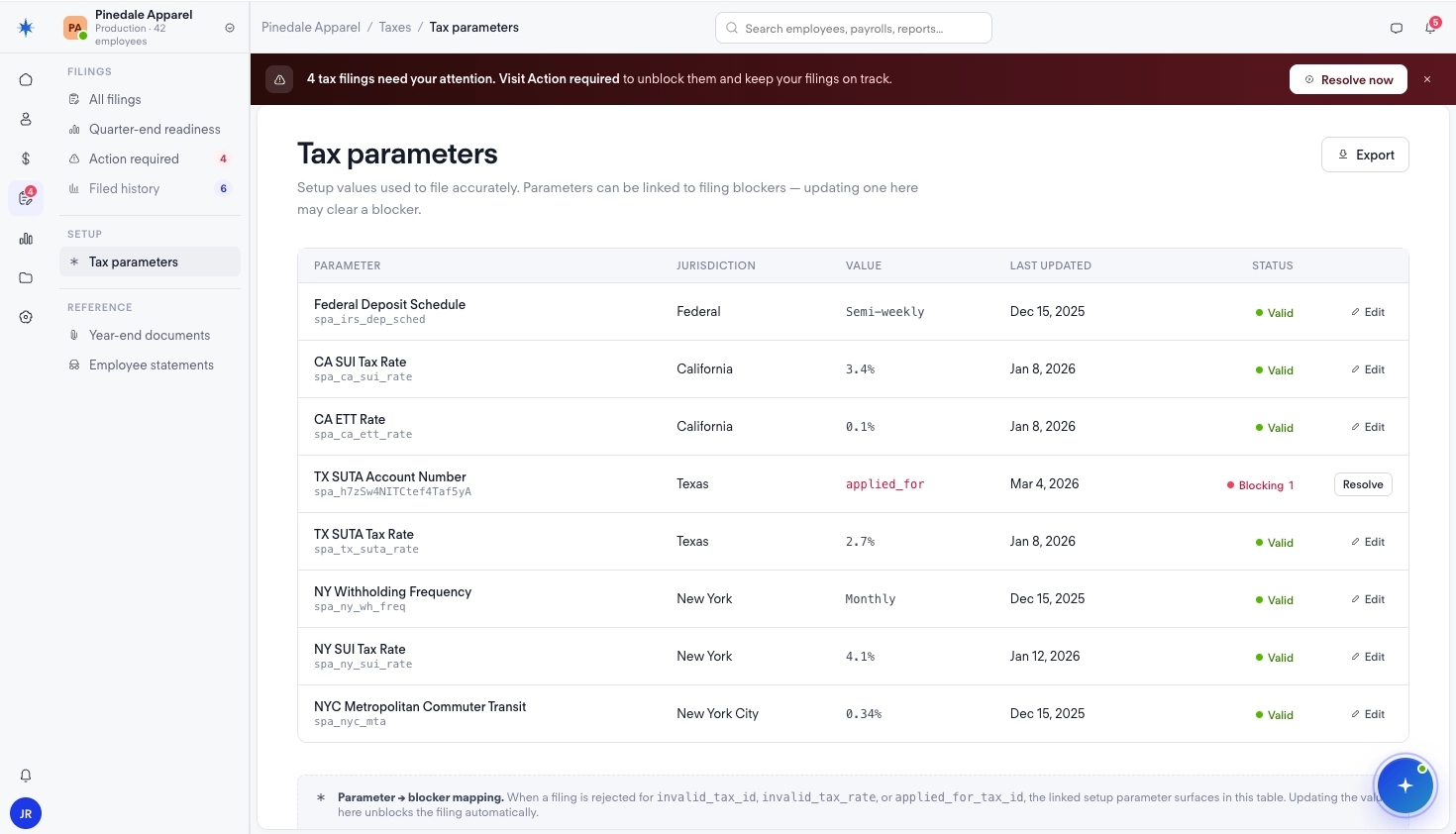
This means employers can resolve blockers from two places: the Action Required view and the Tax Parameters view.
Year-end documents
Annual filings and wage statements
The year-end hub has two distinct sections: Company Returns (annual tax filings like Form 940, W-3) and Employee Statements (W-2s, 1099s). These have different distribution flows and different audiences — it's worth keeping them visually separated.
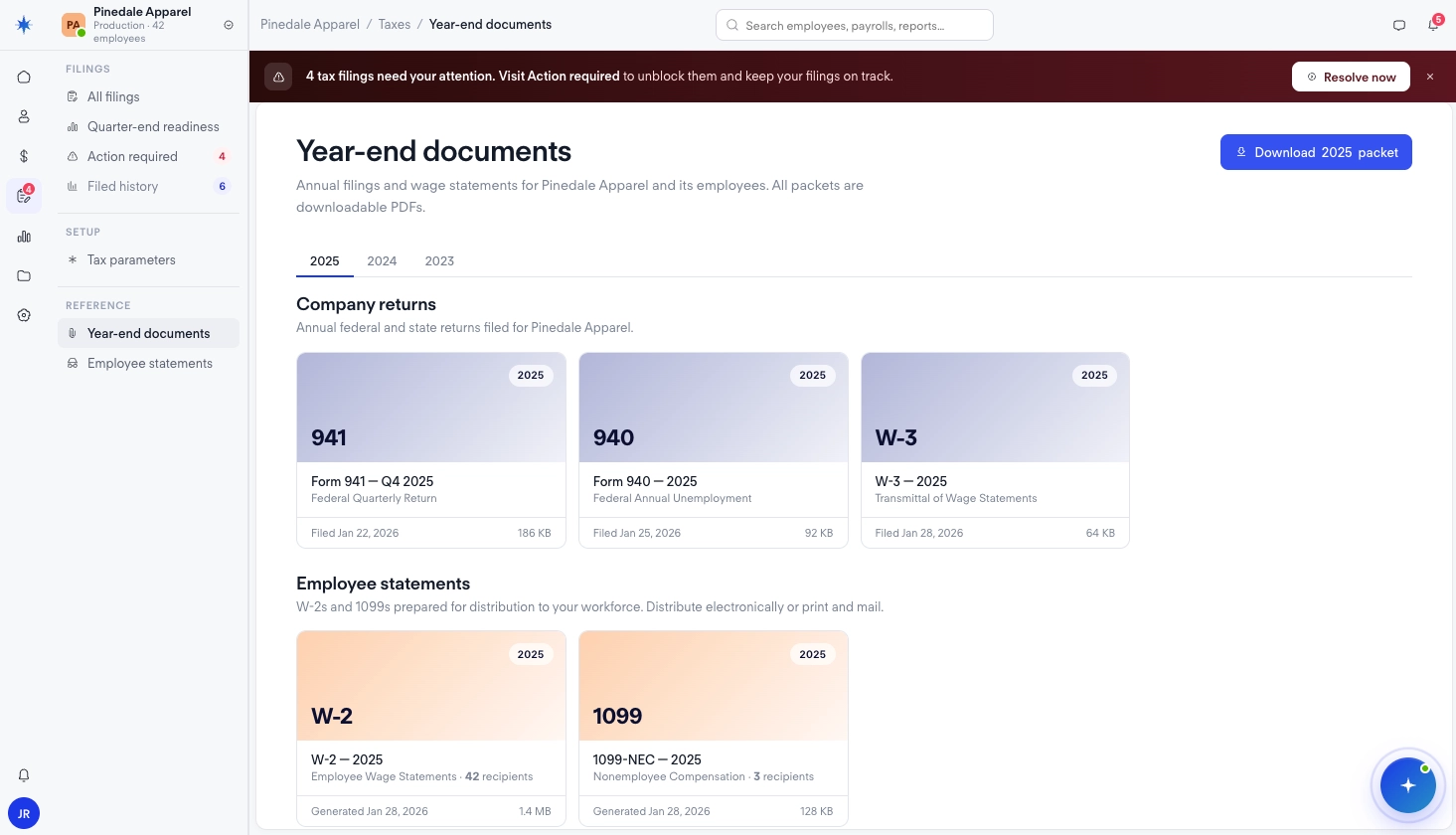
Partners can download W-2s and 1099s via the API and distribute them through their own delivery system.
Employee statement distribution
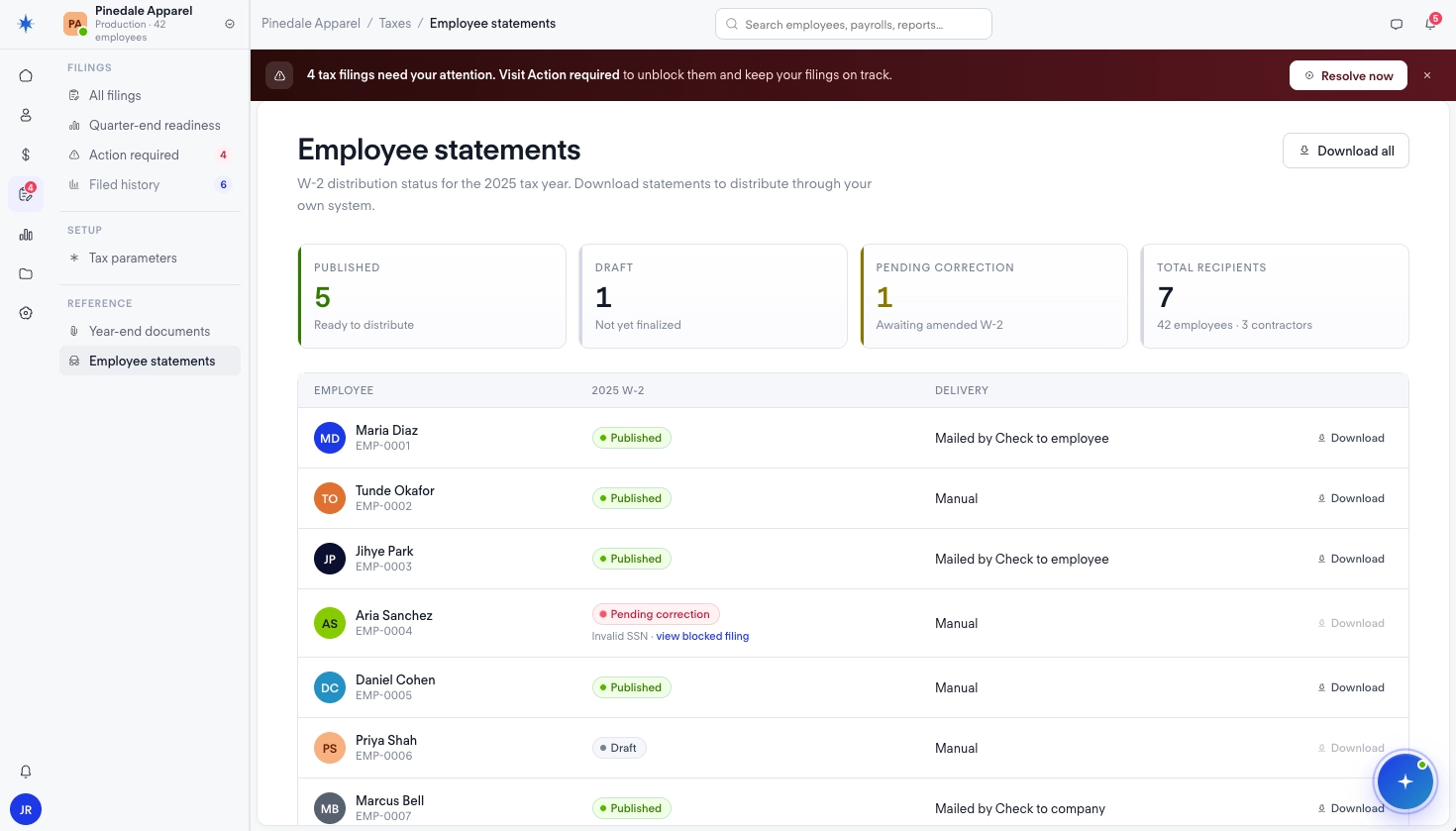
The W-2 distribution view shows per-employee status. Employees with data quality issues have a publication_status of pending_correction in the Employee Tax Statements API. To surface SSN issues, cross-reference with GET /filings?status=blocked — employees flagged by an invalid_ssn blocker appear there via blocked_reason.resource. After the SSN is corrected, call POST /filings/{id}/remove_blockers to unblock the filing; it does not auto-clear from an SSN fix alone.
Optional: AI filing assistant
An optional AI assistant can significantly reduce filing-related support volume. The UI shows it as a slide-in panel over the filings list, with context-aware suggested questions generated from the company's actual filing state.
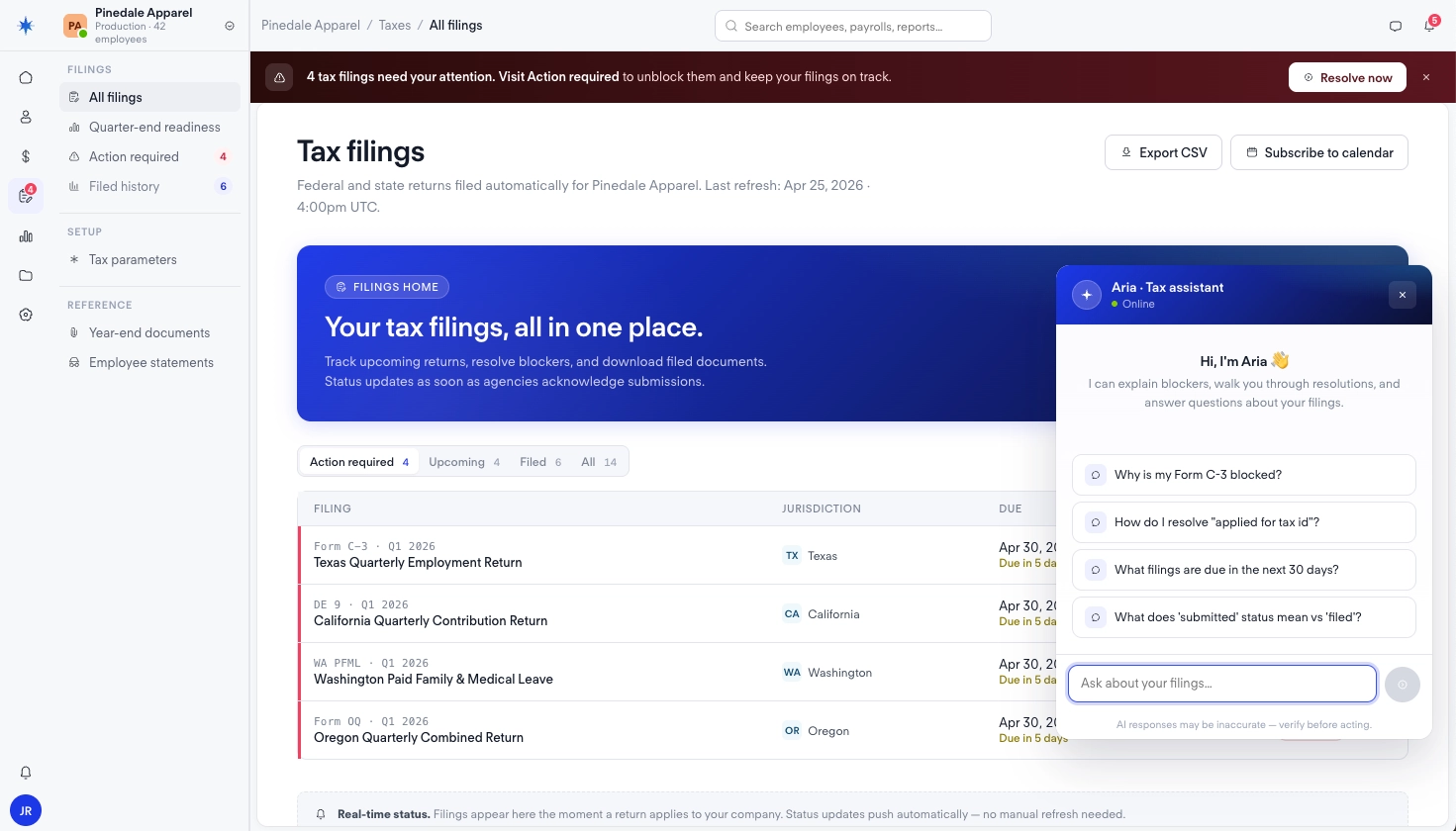
This can be built as a RAG layer over the filing data you've already loaded — pass the company's current filings as context. The suggested questions in the screenshot are all answerable from the GET /filings response: which filings are blocked and why, what's due in the next 30 days, what "submitted" status means.
Updated 5 months ago