

Check + Human Interest Integration Guide
Introduction
Human Interest is an online platform that helps small businesses purchase 401(k) plans.
The Check + Human Interest integration enables any partner to offer a 401(k) plan purchasing experience directly in their platform. End users can either connect to an existing Human Interest plan or create a new one through a guided onboarding flow.
There are two ways to offer this integration:
- Check-managed Component (recommended): embed a Check Component that handles the entire flow — consent, authorization, and the secure handoff to Human Interest — with no secrets to manage and no JWT or redirect code to write.
- Custom build (not recommended): build your own UI and implement the authorization, JWT signing, and redirect yourself.
Implementation Timeline ExpectationsTo offer the Human Interest integration, you will need to sign a contract with Human Interest.
Using the Check-managed Component, the technical integration typically takes days. Human Interest also configures your platform on their side, which typically takes about a week once they have what they need from you, so share these early with the Human Interest team. A custom build requires implementing consent UI, JWT signing, and redirect handling yourself, and can take up to 6 weeks end-to-end.
To get started, reach out to your Check representative.
Option 1 (Recommended): The Human Interest Component
The fastest way to offer Human Interest is through a Check Component — an embeddable piece of UI that you can embed directly into your product via an iFrame (see Embedding a Component Guide). The Component manages the full lifecycle: introducing Human Interest to your users, collecting their consent, authorizing the integration, and securely handing them off to Human Interest's purchasing funnel. Check generates and signs the redirect on your behalf, so you do not need to generate a shared secret, construct a JWT, or build any redirect handling.
Generating the Component
To generate the Human Interest Component, make a POST request to the following endpoint.
https://sandbox.checkhq.com/companies/{companyId}/components/integrationsInclude the following in the body of the request:
{
  "integration_partner": "int_21e08Fvrk5KS6cyzEekz", // use this exact ID for the Human Interest integration
  "email": "[email protected]" // the plan administrator's work email
}
Human Interest uses the administrator's email to route new versus returning users in their funnel. Check requires that an email be present on the company object or passed in the request body when generating the component link. If both are present, the email in the request body is used.
What Human Interest needs from you
Before the integration goes live, Human Interest configures your platform on their side. Have these ready:
- Sandbox network access: your public egress IP addresses in CIDR form, ideally your office or VPN NAT. Human Interest's sandbox is not publicly available, so they allowlist these.
- Sandbox email domain: the email domain your team tests with, so it can receive one-time passcodes in Human Interest's sandbox.
- Component URLs: where you host the Human Interest Component in sandbox and production, if available. Human Interest sends users who name you as their payroll provider there.
- Logo: your logo for use on a white background, wordmark preferred.
Component Experience Walkthrough
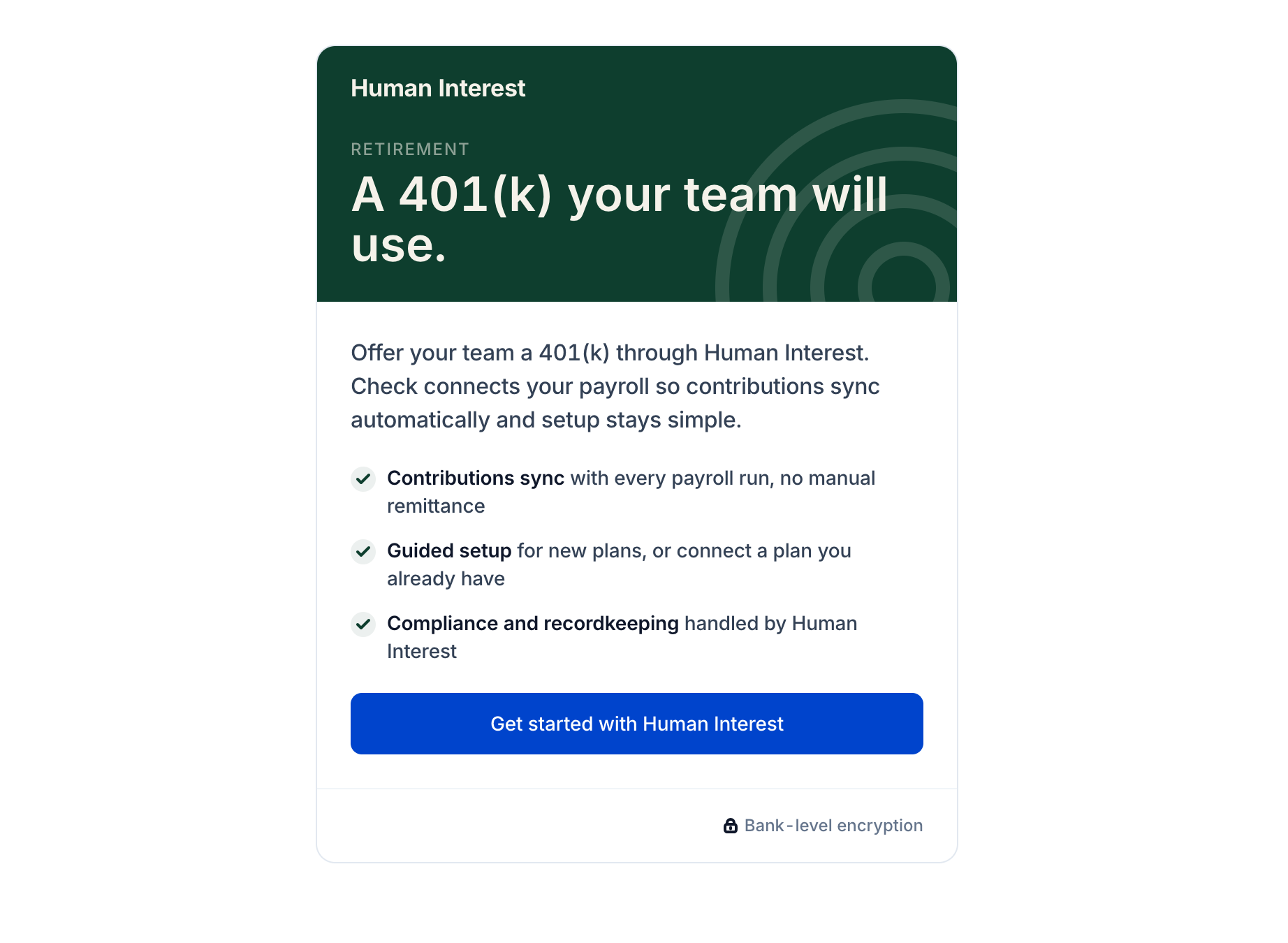
- Discovery: upon first load, the Component surfaces a value prop page introducing Human Interest with a single call to action. Clicking it opens a consent modal that collects the user's authorization for Human Interest to securely connect with Check.
-
Handoff to Human Interest: after the user consents, Check authorizes the integration and opens Human Interest's purchasing funnel in a new tab, signed and addressed to the right environment automatically. Existing Human Interest users select their plan/division and finalize the connection; new users complete Human Interest's self-service onboarding flow to create a 401(k) plan. No special handling is required on your end to distinguish between these user types.
-
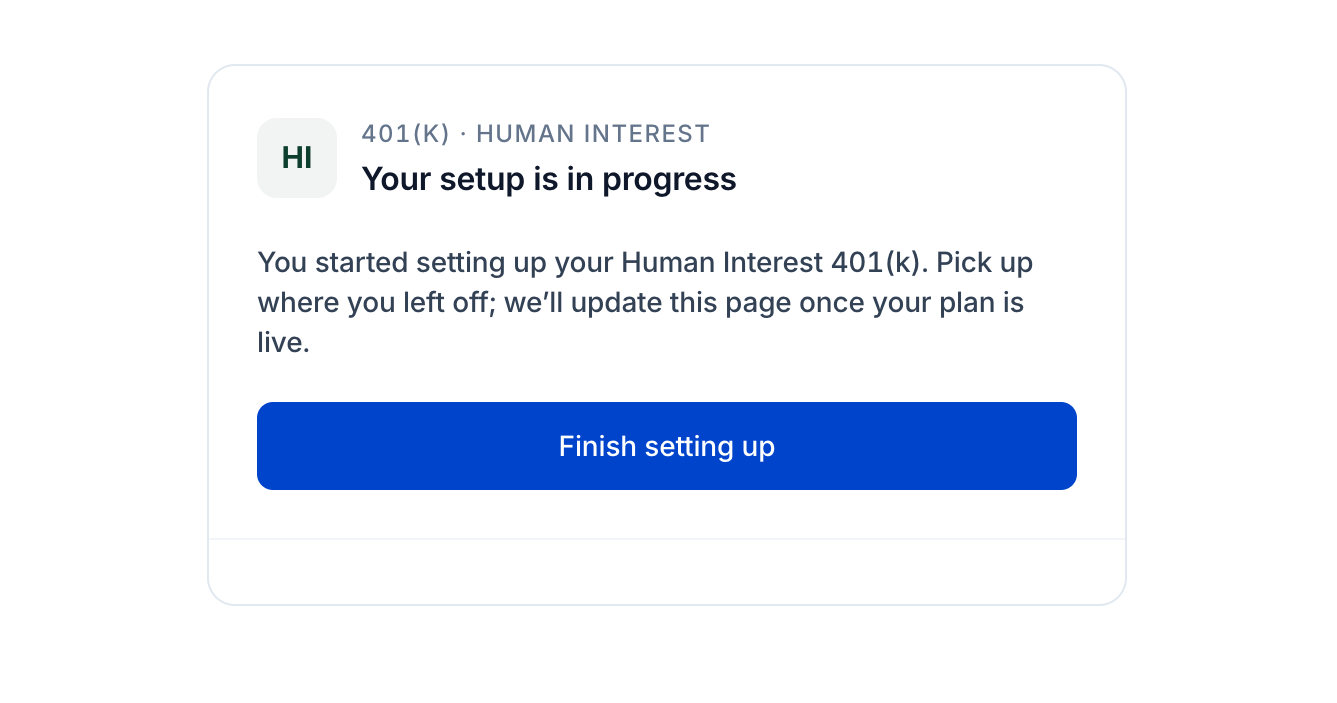
Picking back up: if a user drops off mid-funnel, the Component recognizes the in-progress connection on their next visit and offers a "Finish setting up" action that returns them to Human Interest — no re-consent required.
- Managing an active plan: once the plan is connected, the Component shows the plan's active status and deep-links the administrator to Human Interest's portal to manage it.
Compensation
It is recommended, but not required, to use Check's Earning Rates API to set up earning rates for employees enrolled in Human Interest 401(k) plans to reduce the burden on the plan administrator of manually entering compensation. The compensation data (earning rates) are used by Human Interest to populate and update employee records in their systems.
This information is important for:
- Plan Eligibility & Contributions: Compensation is used to determine employee eligibility for retirement plans and to calculate contribution amounts (e.g., salary deferral percentages, employer match calculations).
- Compliance & Testing: Accurate compensation data is required for nondiscrimination testing (e.g., ACP, top-heavy tests) and for IRS compliance reporting.
- Payroll Sync & Deferral Processing: When syncing payroll or processing deferrals, the system uses the compensation field to calculate the correct deduction amounts for each pay period.
- Participant Statements & Reporting: Employee compensation is displayed in participant statements and used in various reports for both employers and employees.
Earning Rate Setup
How the Integration Collects Compensation Data:
- The integration fetches all active earning rates.
- Earning rates are automatically grouped by employee ID.
- Each employee receives their associated earning rates as part of the census data
- If earning rates aren't set up or marked as inactive, employees will have empty
compensation.
To reduce the burden on the plan administrator, partners can maintain active earning rates in
Check to ensure compensation data flows into the Human Interest census integration.
Option 2: Custom Build (Not Recommended)
Not recommended. The custom build requires you to manage a shared secret, implement JWT signing, and build consent and redirect UI yourself — work the Check-managed Component above already does for you. Expect up to 6 weeks end-to-end. Choose this path only if you cannot embed Check Components in your product.
Quick Start Checklist
- Obtain your Check Partner ID and API credentials
- Generate a shared secret for each environment (dev + production)
- Securely share secrets with Human Interest
- Implement the authorization endpoint call
- Implement the JWT generation and redirect
- Build the UI for users to initiate the connection
- Test in development environment with Human Interest
Prerequisites
Before implementing this integration, ensure you have:
- A Check partner account with API access
- Familiarity with Check's OAuth flow
- A secure secrets management solution (e.g., AWS Secrets Manager, HashiCorp Vault)
- Access to a development/sandbox environment for testing
- A signed contract with Human Interest
Overview
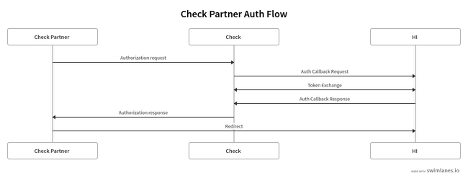
The diagram below provides a high level overview of the auth process between the Check Partner, Check, and Human Interest.
Step 1: Generate Your Shared Secret
Generate a secure, 32-byte (256-bit), base64-encoded secret that will be used to sign JWTs sent to Human Interest.
const crypto = require('crypto');

const secret = crypto.randomBytes(32).toString('base64');
console.log(secret);Important:
- Generate one secret per environment (development and production)
- Store secrets securely using a tool like AWS Secrets Manager—do not commit to version control
- Share secrets with Human Interest through a secure channel (not Slack or plaintext email)
Step 2: Build the User Interface
Create or update a page that allows users to initiate a connection to Human Interest. This page should:
- Contain a clear UI element (e.g., button) indicating the user will connect to Human Interest
- Be capable of receiving redirects from Human Interest (to support existing HI users initiating connections from within Human Interest)
Example button text: "Connect to Human Interest" or "Set up 401(k) with Human Interest"
Step 3: Authorize the Integration
When a user initiates the connection, make a PUT request to Check's API to authorize the integration.
Following the Check OAuth Integration Guide, make a PUT request to the Authorize an Integration Partner endpoint with the following data in the request body:
| Parameter | Value |
|---|---|
| Integration Partner ID | int_21e08Fvrk5KS6cyzEekz |
| Integration Permission ID | ipe_54qwR1P7royqJkvTzHIu |
Step 4: Generate the JWT
After receiving a successful response from Check, generate a signed JWT for the redirect to Human Interest.
Payload requirements
| Claim | Description |
|---|---|
check_partner_id | Your partner ID in Check (obtain from Check) |
check_company_id | The company ID in Check |
Token requirements
- Algorithm:
HS256 - Expiration: 1 hour
- Signed with: Your shared secret
import * as jwt from 'jsonwebtoken';
import { SHARED_SECRET } from '@src/config';

const PARTNER_ID = 'pro_123';
const COMPANY_ID = 'com_456';

/**
 * Creates an HMAC-SHA256 signed JWT token for Human Interest redirect.
 */
function createPartnerSignedToken(
  secret: string,
  partnerId: string,
  companyId: string
): string {
  const payload = {
    check_company_id: companyId,
    check_partner_id: partnerId,
  };

  const options: jwt.SignOptions = {
    algorithm: 'HS256',
    expiresIn: '1h',
  };

  return jwt.sign(payload, secret, options);
}

const token = createPartnerSignedToken(SHARED_SECRET, PARTNER_ID, COMPANY_ID);
Step 5: Redirect to Human Interest
Redirect the user to Human Interest with the signed JWT appended to the URL.
| Environment | Redirect URL |
|---|---|
| Development | https://provider-main.app-dev.inside.humaninterest.com/api/check/partner-redirect?token={token} |
| Production | https://app.humaninterest.com/api/check/partner-redirect?token={token} |
Replace {token} with the JWT generated in Step 4.
User Experience After Redirect
Once redirected to Human Interest, users will:
- Existing HI users: Select their plan/division and finalize the connection
- New HI users: Complete a self-service onboarding flow to create a new 401(k) plan
No special handling is required on your end to distinguish between these user types.
Testing
To test the integration:
- Provide Human Interest with access to your development or sandbox environment
- Human Interest's sandbox is not publicly available. Share your egress IP addresses and test email domain with Human Interest so they can allowlist your team (see What Human Interest needs from you).
- Test both new user and existing user flows
FAQ
Q: Is there any difference in the flow for a user with an existing Human Interest account?
A: On your end, no. You may receive a redirect from Human Interest when an existing user attempts to connect to your service, but no special handling is required.
Q: What happens after our user connects to Human Interest?
A: After the handoff to Human Interest, the user will land on a page where they are given the option to connect to an existing Human Interest plan or create a new one. Existing HI users can select their plan/division and finalize the connection. New HI users will be taken through our self-service onboarding flow to create a plan.
Q: How do we test the integration?
A: You should provide Human Interest access to a dev or sandbox environment to test. Human Interest's sandbox is not publicly available, so they allowlist your team's egress IP addresses and test email domain during onboarding. See What Human Interest needs from you.
Support
Additional questions? Reach out to:
- Check: [email protected]
- Human Interest: [email protected]
Updated about 12 hours ago