

Hosted (Remote)
Connect to the Check MCP Server without managing any infrastructure.
Connect to the Check MCP Server without cloning a repository or managing any infrastructure. Check runs the server for you — just point your AI client at the endpoint and log in.
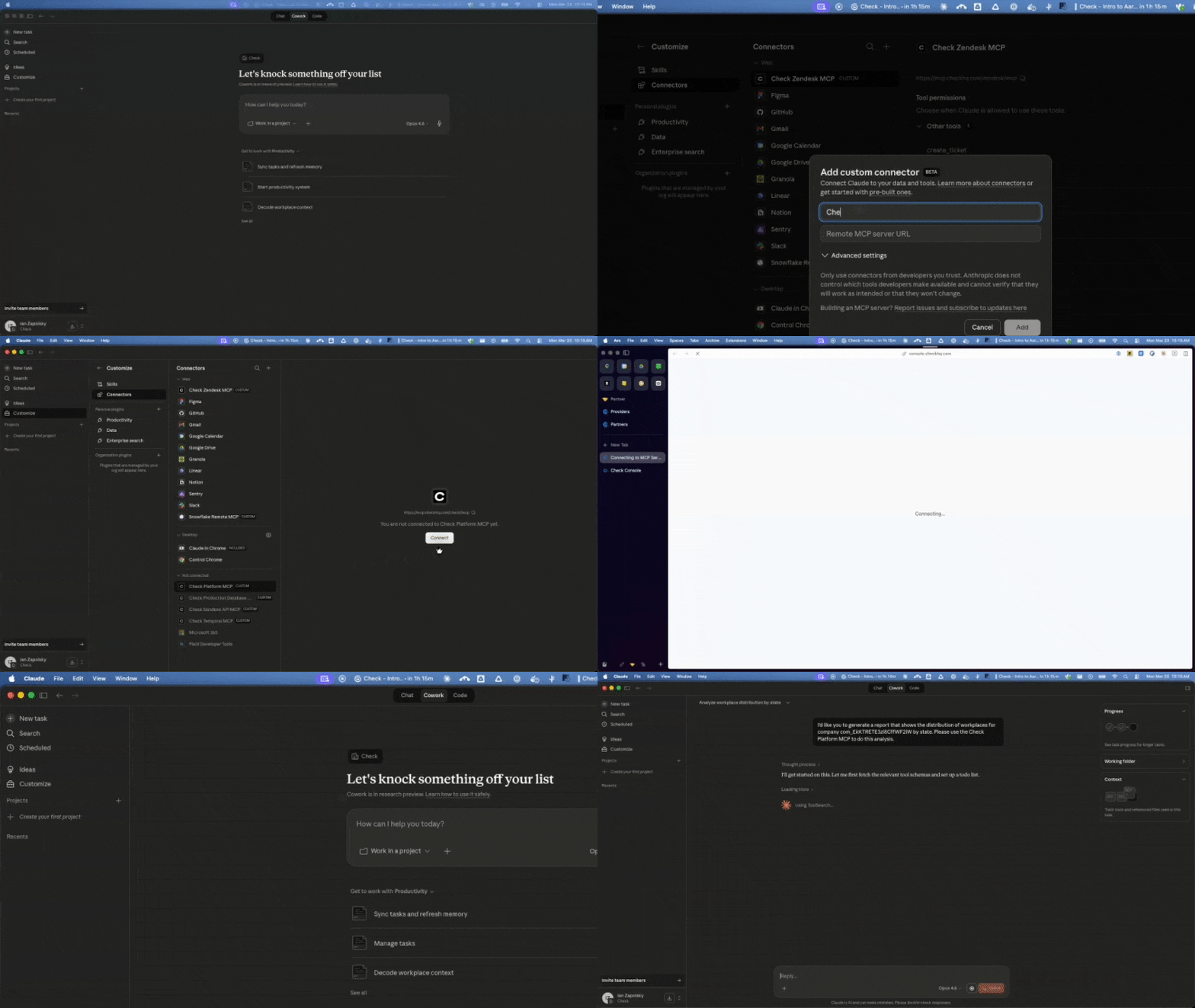
How it works
In hosted mode, Check provides a remote MCP endpoint that your AI client connects to directly. There's nothing to install locally — no Python, no uv, no repository to clone.
- Remote MCP endpoint — A server-side endpoint managed by Check
- Two ways to authenticate — Log in through Check Console via OAuth, or send a Check API key in the
Authorizationheader. OAuth suits people working in an AI client; an API key suits agents running on your own servers with no browser to drive. See Authentication. - No local dependencies — Works from any machine with an MCP-compatible client
- Same capabilities — Full access to all 270 tools across 18 toolsets, with the same dynamic tool architecture
Endpoint URLs
| Environment | URL |
|---|---|
| Sandbox | https://mcp.sandbox.checkhq.com/check/mcp |
| Sandbox Read Only | https://mcp.sandbox.checkhq.com/check/mcp?read_only=true |
| Production | https://mcp.checkhq.com/check/mcp |
| Production Read Only | https://mcp.checkhq.com/check/mcp?read_only=true |
Start with the sandbox endpoint for testing and development. Switch to the production URL when you're ready to work with live data.
By appending the read_only=true query parameter to the end of the URL, you can force the MCP to operate in read-only mode. This allows you to add an organizational connector for your company that does not have write capabilities against the Check API.
Use caution in production. Actions taken through the MCP server are real — payrolls will be processed, payments will be sent, and records will be modified. Consider using read-only mode or toolset filtering to limit what the AI can do.
Authentication
The hosted server supports two credentials. Both reach the same tools against the same endpoints — they differ in who the request acts as, and which rate limit it consumes.
| Console OAuth | API key | |
|---|---|---|
| Best for | A person working in an AI client | An agent or service running on your own infrastructure |
| Credential | A Check Console login | A Check API key |
| Setup | Browser opens on first connect; the client stores the token | Send the key as a header on every request |
| Acts as | The Console user who logged in | Your partner account |
| Rate limit | Console's limit — does not consume your API quota | Your standard API rate limit |
| Requires a browser | Yes, once | No |
Console OAuth
When your MCP client connects, it initiates an OAuth flow that opens a browser for Console login. You authorize the connection and the client receives a token automatically — nothing to copy and paste. This is the default for every client configuration in the next section.
API key
Send a Check API key as a bearer token on the connection to the MCP endpoint:
Authorization: Bearer <your-api-key>Use the sandbox key with the sandbox endpoint and the production key with the production endpoint — a key is not valid across environments.
An API key is not scoped to a person. Unlike an OAuth session, it carries your whole partner account and is not limited by Console permissions. For an unattended agent, issue a dedicated key you can rotate independently, and narrow what it can reach with read-only mode or toolset filtering.
Connect to an AI client
Choose your client below and follow the configuration instructions. All configurations use the sandbox endpoint — replace the URL with the production endpoint when ready.
Claude Desktop
Open Settings → Developer → Edit Config and add the following to claude_desktop_config.json:
{
  "mcpServers": {
    "check": {
      "type": "url",
      "url": "https://mcp.sandbox.checkhq.com/check/mcp"
    }
  }
}
Restart Claude Desktop after saving. On first use, a browser window will open for you to log in to Check Console and authorize the connection.
Claude Code (CLI)
Run the following command:
claude mcp add --transport http check https://mcp.sandbox.checkhq.com/check/mcpOn first use, Claude Code will open a browser for you to authenticate through Check Console.
To authenticate with an API key instead of a browser login, pass the header:
claude mcp add --transport http check https://mcp.sandbox.checkhq.com/check/mcp \
  --header "Authorization: Bearer your-api-key-here"
Cursor
Open Cursor → Settings → MCP and add the following server configuration:
{
  "mcpServers": {
    "check": {
      "type": "url",
      "url": "https://mcp.sandbox.checkhq.com/check/mcp"
    }
  }
}
On first use, a browser window will open for you to log in to Check Console.
ChatGPT
ChatGPT has native support for remote MCP servers. Go to Settings → Connected apps → Add MCP server and enter:
https://mcp.sandbox.checkhq.com/check/mcpChatGPT will handle the OAuth flow automatically.
Google Gemini
Gemini has native support for remote MCP servers. Add the Check MCP endpoint in Gemini's MCP configuration:
https://mcp.sandbox.checkhq.com/check/mcpGemini will handle the OAuth flow automatically.
OpenAI Codex CLI
Add the following to ~/.codex/config.json:
{
  "mcpServers": {
    "check": {
      "type": "url",
      "url": "https://mcp.sandbox.checkhq.com/check/mcp"
    }
  }
}
Agents and server-to-server clients
For an agent running on your own servers, connect with the streamable HTTP transport and set the Authorization header on the client. There is no browser step.
from mcp import ClientSession
from mcp.client.streamable_http import streamablehttp_client

url = "https://mcp.sandbox.checkhq.com/check/mcp"
headers = {"Authorization": f"Bearer {CHECK_API_KEY}"}

async with streamablehttp_client(url, headers=headers) as (read, write, _):
    async with ClientSession(read, write) as session:
        await session.initialize()
        tools = await session.list_tools()
To confirm a key works before wiring up a client, call a tool directly. The endpoint requires the headers below, and responds with a server-sent event stream:
curl -sN https://mcp.sandbox.checkhq.com/check/mcp \
  -H "Authorization: Bearer your-api-key-here" \
  -H "Content-Type: application/json" \
  -H "Accept: application/json, text/event-stream" \
  -d '{"jsonrpc":"2.0","id":1,"method":"tools/call",
       "params":{"name":"run_tool",
"arguments":{"tool_name":"list_companies","arguments":{}}}}'A successful
initializedoes not prove your key is valid. The handshake succeeds for any sufficiently long token; the key is only checked when the first tool call reaches the Check API. Always verify with a real tool call, as above. An invalid key returns403with"Invalid API key."
Other MCP clients
For any MCP-compatible client, the general pattern is:
- URL:
https://mcp.sandbox.checkhq.com/check/mcp(sandbox) orhttps://mcp.checkhq.com/check/mcp(production) - Transport: Streamable HTTP
- Authentication: OAuth 2.0 (your client handles the browser-based flow automatically), or
Authorization: Bearer <your-api-key>if the client can send custom headers
Clients that accept only a URL with no way to set headers — ChatGPT and Gemini connectors, for example — must use OAuth.
Consult your client's documentation for how to configure remote MCP servers.
Try it out
Once connected, try these example prompts to verify the setup:
- "List all companies in my Check account"
- "Show me the employees for company com_XXXXX"
- "What payrolls are pending approval?"
- "Give me a summary of the most recent payroll run"
- "What tools are available for managing tax settings?"
Access control
You can restrict what the MCP server can do using HTTP headers. Pass these headers from your MCP client to control tool availability per session.
Read-only mode
Disable all write operations (create, update, delete, approve, etc.):
X-MCP-Readonly: trueLimit to specific toolsets
Only expose certain categories of tools:
X-MCP-Toolsets: companies,employeesAvailable toolsets: bank_accounts, companies, compensation, components, contractor_payments, contractors, documents, employees, external_payrolls, forms, payments, payroll_items, payrolls, platform, tax, webhooks, workflows, workplaces
Exclude specific tools
Block individual tools by name:
X-MCP-Exclude-Tools: create_bank_account,delete_employeeCombining options
All access control options can be combined. Filtering precedence: exclude_tools > read_only > tools > toolsets.
Rate limits
Which limit your MCP traffic consumes depends on how you authenticated:
- Console OAuth — requests count against Console's own limit, shared with your team's Console usage. They do not consume your API quota.
- API key — requests count against your standard API rate limit, the same quota your direct API integration uses.
Either way, a single MCP tool call can fan out into several API requests, so a chatty agent consumes more than its tool-call count suggests.
Switching environments
To switch between sandbox and production, update the URL in your client configuration:
| Environment | URL |
|---|---|
| Sandbox | https://mcp.sandbox.checkhq.com/check/mcp |
| Production | https://mcp.checkhq.com/check/mcp |
Updated about 1 month ago